
Xero ExportA guide to using the Xero Export with Back Office in Colleague.
 Xero Export Xero ExportColleague offers the ability to export Invoice and Payment records into a formatted CSV file supported by Xero. This allows for Invoices and Payments to be generated in Colleague and transferred to Xero saving the need for manual entry. Within the Reports area of Colleague, a User will be able to select 'Xero Export'. The parameters of the Xero Report allow for you to generate a list of either Invoices or Payment records based on a specified date range. There is also a tickbox to ensure you do not include already posted Invoice / Payment records. 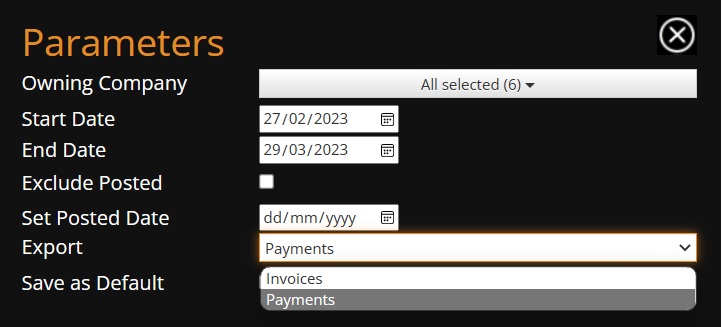
If you have run the report and are happy with the list of Invoice or Payment records, within Parameters of the report enter today's date in the 'Set Posted Date' date field and then run the report again. This will give you the same output, but this time will have updated the associated records to track that they have been posted to Xero. Then press the CSV button to generate the export file: 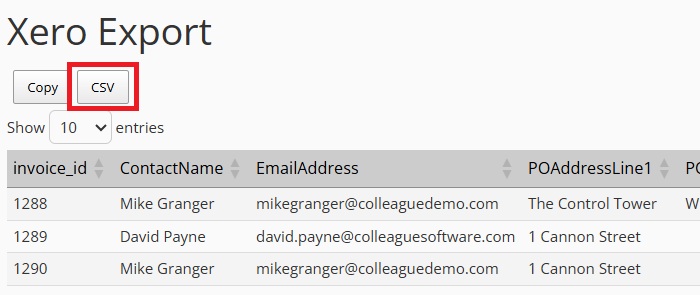
A user can also untick the 'Exclude Posted' Parameters option, if they wish to include already posted Invoices / Payments in the export. Access to this report is controlled via the Reports Maintenance area in Admin. Users within a User Group permitted to run the report will see the report as an option within the Reports area: 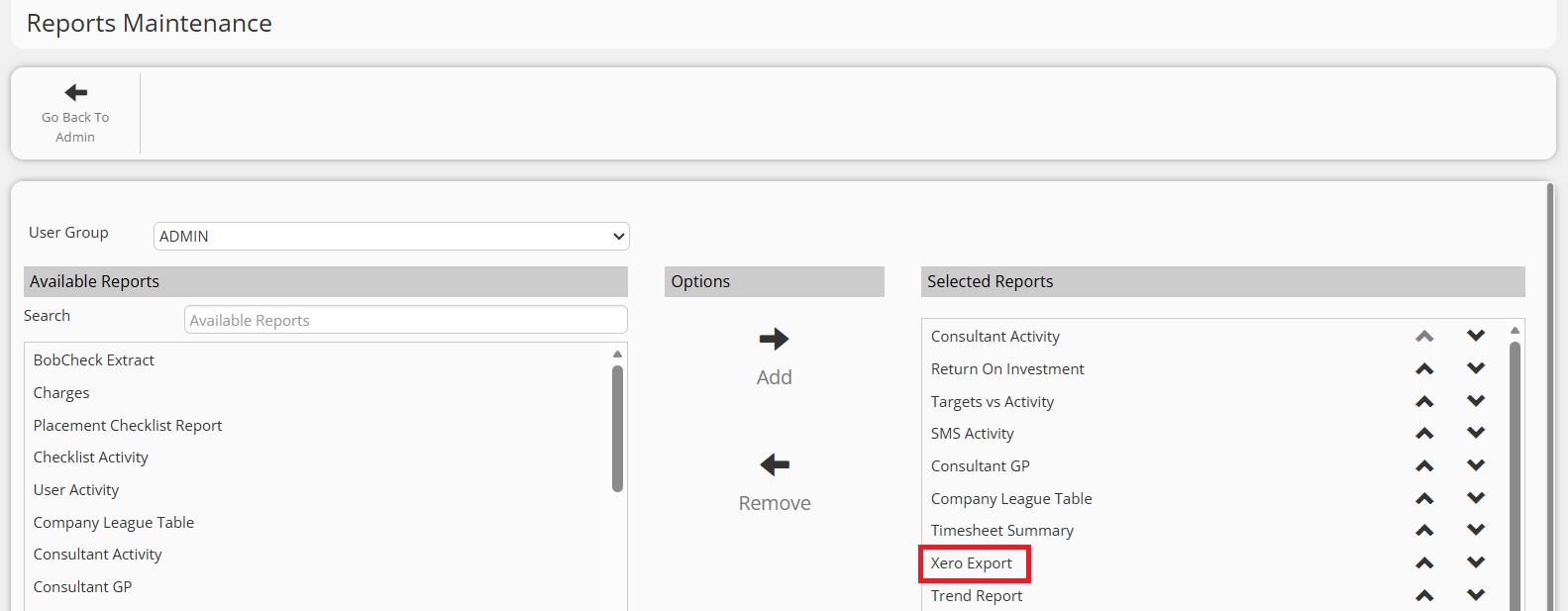
central.xero.com/s/article/Import-customer-invoices-UK For any more information regarding how to use the Xero Export, please contact the Support Team. Related Links |