
Outlook Address Book IntegrationAn administrator's guide on how the Outlook Address Book is integrated with Colleague.
 Outlook Address Book Integration Outlook Address Book IntegrationColleague's Email form supports an integration with your Outlook Address Book. When using the Colleague Email form and typing an email address into the 'To', 'Cc' & 'Bcc' fields, any matching email addresses from your address book will be listed in an autofill dropdown. 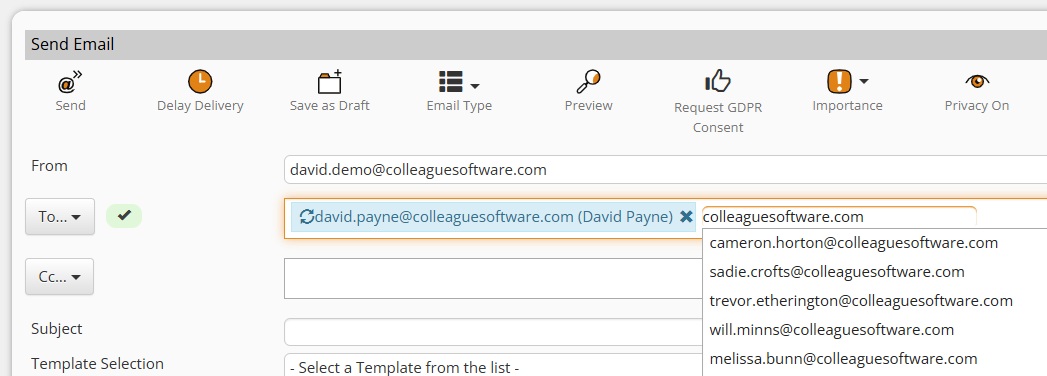
This integration will be based on a Microsoft 365 Admin permission, which your MS365 Administrator will need to authorise to grant Colleague access to your Address Book. If the administration of your 365 tenant is being managed by Colleague Software, we will take care of this for you. If you are using a third party to manage your 365 tenant, please arrange for your 365 administrator to contact the Colleague Support Team, and we will send the necessary link to authorise the permission. Once your system has been configured with the necessary permissions, Users will notice an icon appear on the Email form to indicate when the Address Book is loading (and loaded). The request to sync with the Address Book is made on load of the email form, this can sometimes take several seconds to complete (depending on the size of the Address Book). Whilst loading, you will see this icon (next to the 'To' field): 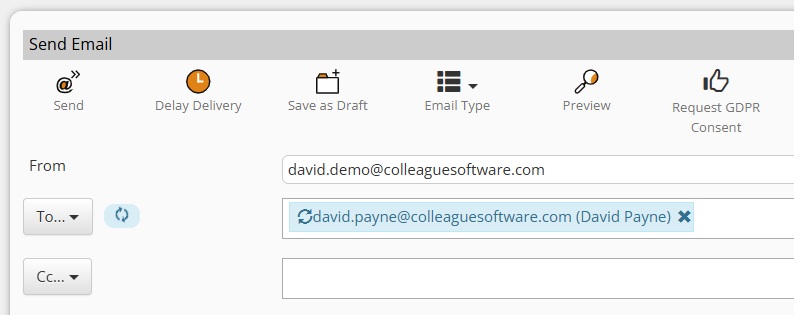
Once loaded, the icon will turn green with a tick, the mouseover text will also confirm the Address Book has loaded: 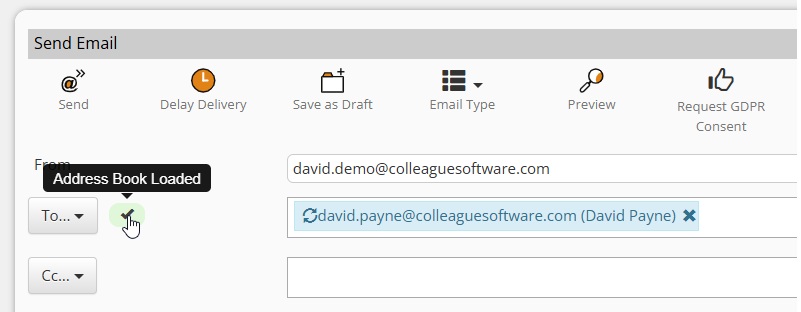
With the Address Book loaded, when typing into the 'To', 'Cc' & 'Bcc' fields, the email addresses from your Outlook Contacts will be listed:
For any more information regarding integrating your Outlook Address Book with Colleague, please contact the Support Team. |