
Power BI User GuideHow to configure Power BI reports to be accessible within Colleague.
 Power BI Power BIMicrosoft Power BI is a suite of analytics tools that enables organisations to connect to hundreds of data sources, transform raw data into meaningful insights, and share interactive reports and dashboards - all through an intuitive, low-code interface. Power BI consolidates data from disparate sources - including Excel, Colleague database(s), cloud services, and APIs - into a single, unified view, allowing users to build rich, interactive reports with drag-and-drop simplicity. These reports can then be embedded within the Colleague interface for Users to access: 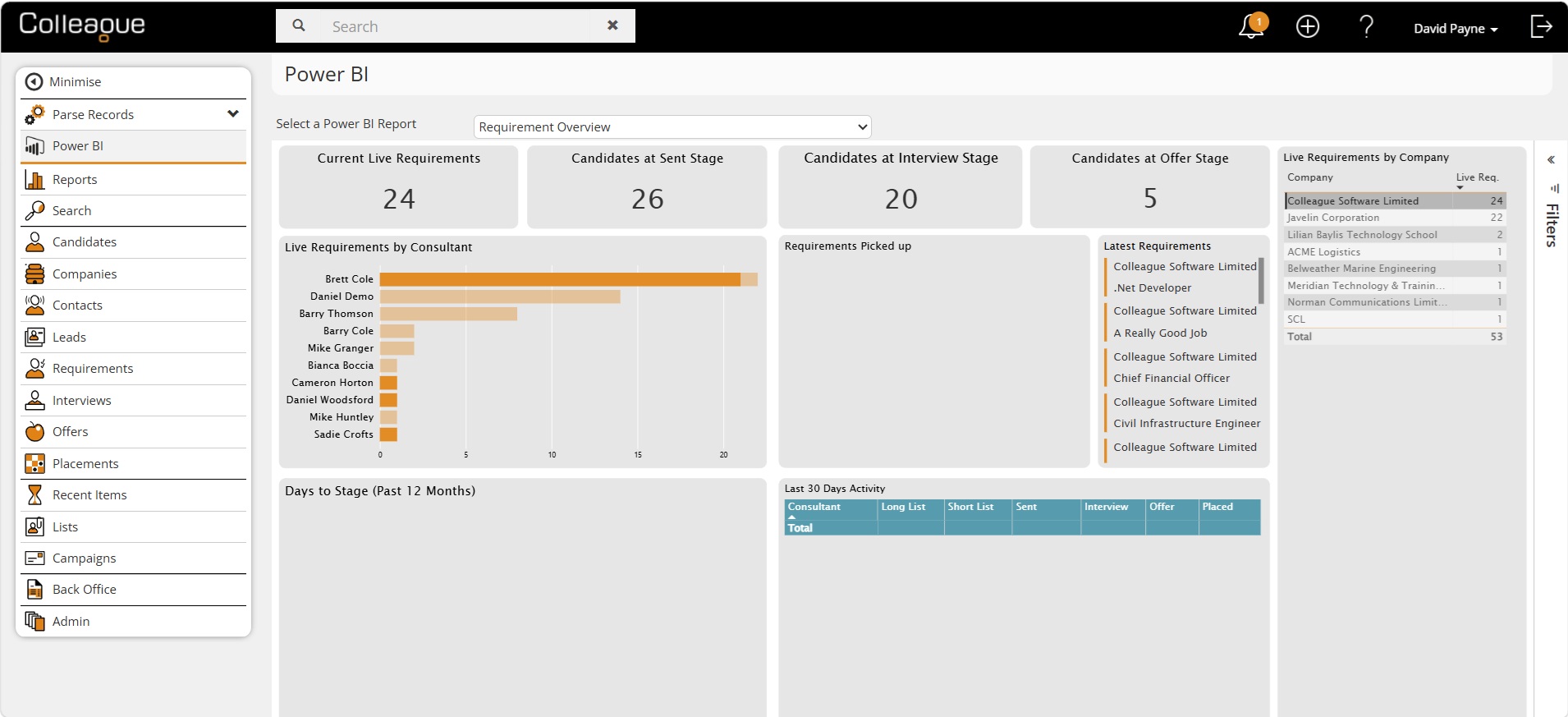  Microsoft Pricing Microsoft PricingPower BI is an additional solution outside of the standard MS365 Office suite. The first step to utilising Power BI reports will be to setup a Power BI Pro licence. Each 365 user who needs to access the report will need a Power BI Pro licence. URL: microsoft.com/power-platform/products/power-bi/pricing Please Note: This will not work with the free version.  Pointing Power BI to Access Your Database Pointing Power BI to Access Your DatabaseSetting up Power BI's access to Colleague is implemented via our Support Team. Please reach out to the Support Team in the first instance once you have enabled your access to Power BI.  Setup SetupThe Power BI reports are created outside of Colleague, and then opened within Colleague inside an iframe. The Power BI Menu icon is enabled via a User Group Permission setting:  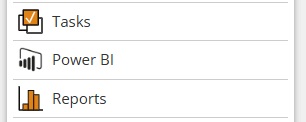
There is an admin area option called Power BI Options, which allows Users to add the URLs of different Power BI reports and give them a name: 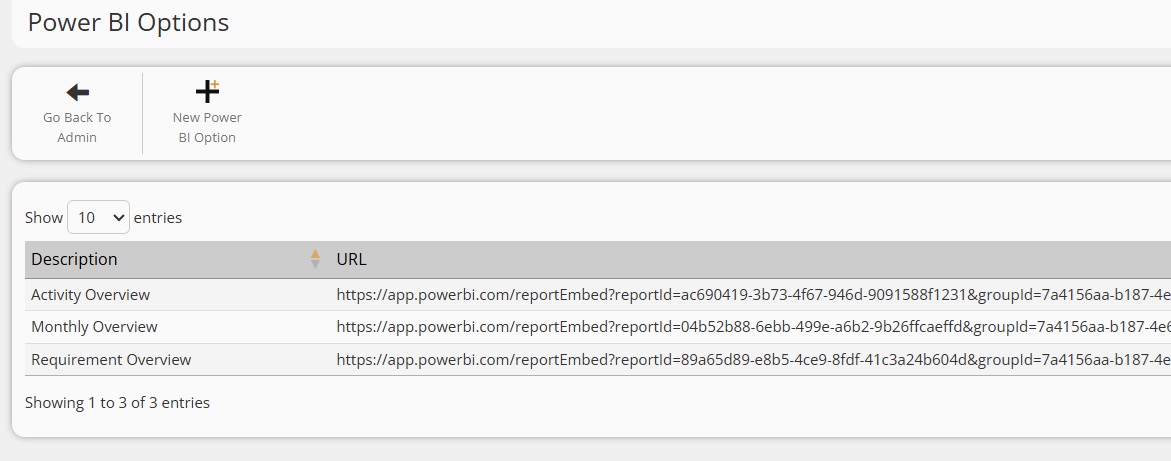
Once enabled, when you click on the Power BI menu option, it will list the reports for you to select: 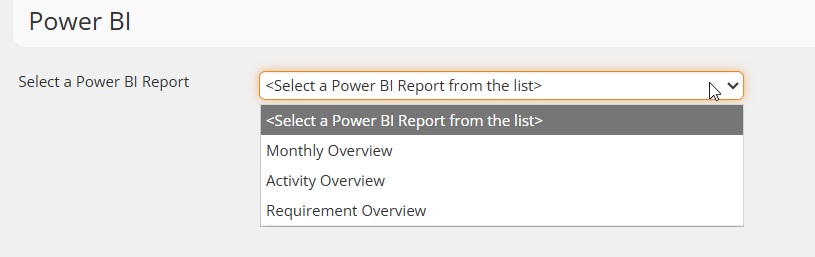
On selection, it will then load the Power BI report into Colleague: 
For more information regarding Power BI, please contact the Support Team. Related Links |