
Create a Power Automate link to Colleague APIHow to create a Power Automate link to the Colleague API so you can build your own automation tasks.
 Download API Definition Download API DefinitionFirst you will need to download the API definition from the API website. For details on how to register for API Access please click here. Once you have registered and gained access to the API, sign in and navigate to the API section: coll7openapi.developer.azure-api.net/apis Select 'Colleague 7 Open API'. Then on the API definition dropdown, select "Open API 2 (JSON)": 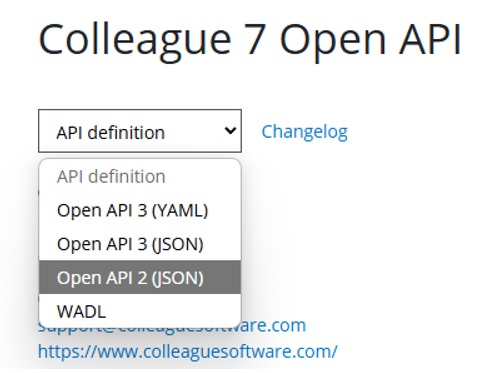
This will download the API definition file.  Add Custom Connector to Connect Colleague API Add Custom Connector to Connect Colleague APIWithin Power Automate, navigate to the Custom Connectors section: 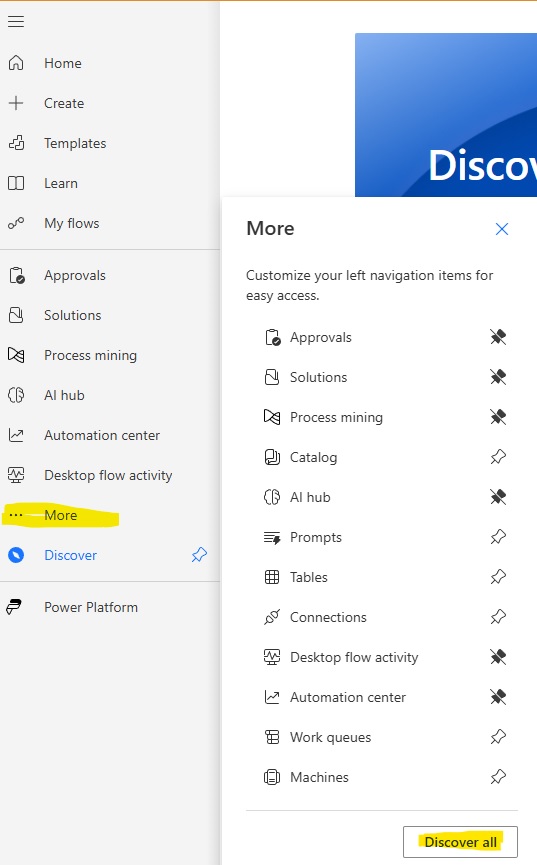 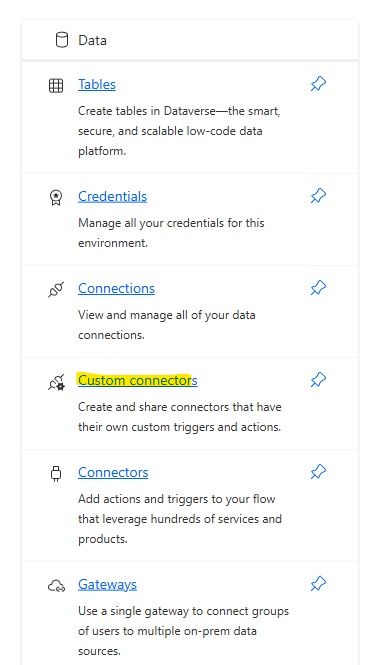 Select 'Import an OpenAPI file' from the new custom connector drop list: 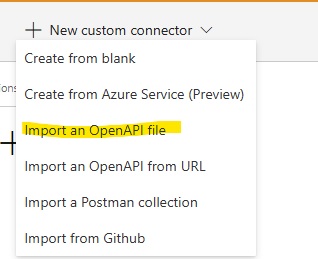
Give the connector a name and select the API definition file you have downloaded: 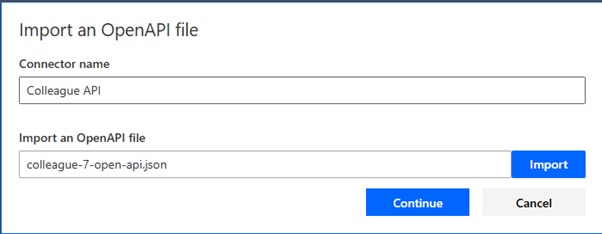
Click "Create Connector" to finish saving. Select Colleague API Calls within Power AutomateWithin your Power Automate flow you will now be able to see the Colleague API and the list of available actions: 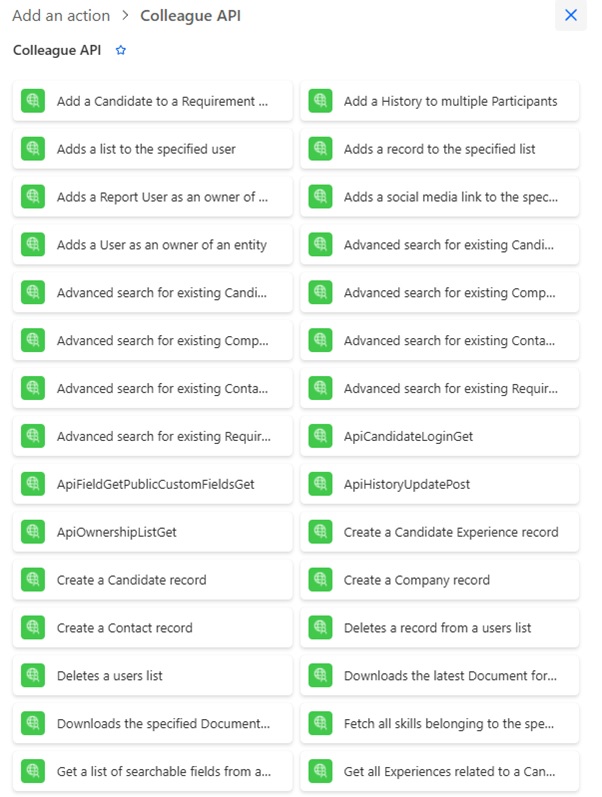
Selecting one of these will ask you for the API key to create a connection: 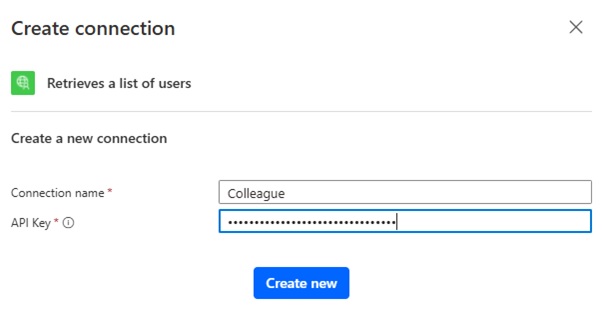
You'll then be given the option to fill in the parameters for the API call: 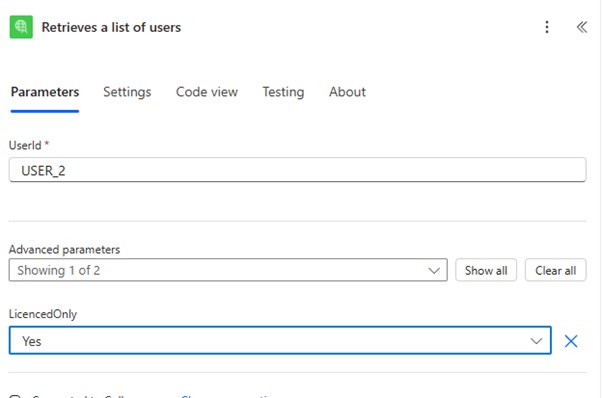 
For more information regarding Colleague's API, please contact the Support Team. |