Release Notes - 26.06.02 (June 26)Development delivered under sprints 26.06.01 and 26.06.02.
Key features: UI update for Search Results, new Convert to PDF option, Mailshot Maintenance page, plus minor UI and bug fixes. Upgrade date: 11/07/26  Enhancements EnhancementsSearch Results - Updated UI for Lists, Recent Items & Quick Search
The list view across Quick Search, Lists and Recent Items has been updated to give richer access to record information directly from the list. You can now see the profile picture of Candidates, Companies and Contacts (with a default image where none exists), open a record’s default document via a quick link, and view social media link icons. Interview and Placement records show the Candidate profile picture (if one exists); Leads and Requirements show the Company profile picture (if one exists). The default document link opens PDFs in a new browser tab and .doc / .docx files in Microsoft Word, and only relevant social media icons are displayed. These additions were implemented carefully to avoid performance impact (particularly in Quick Search), and table-view conversion and export options continue to work as expected. 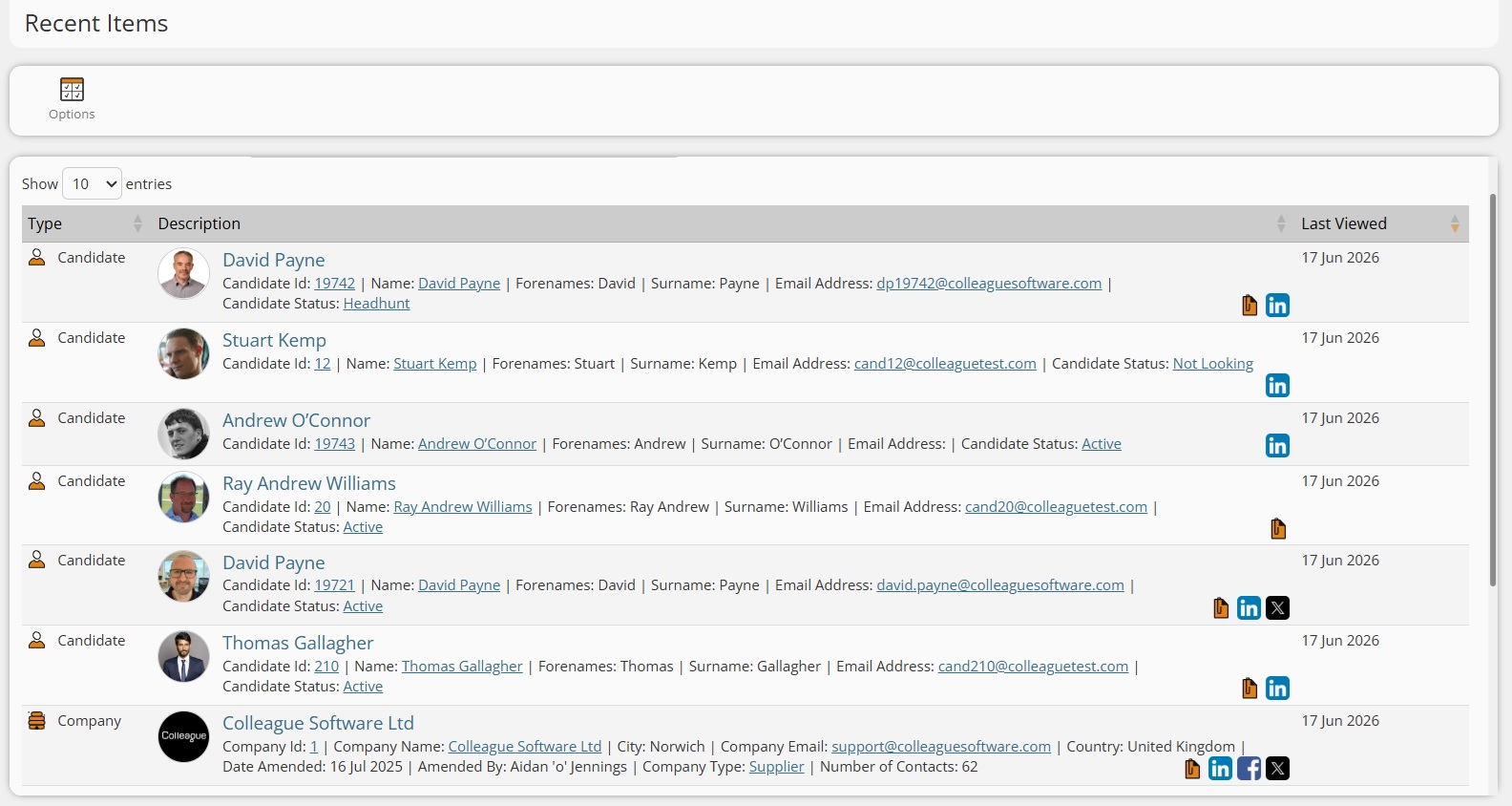
Search Results - Social Media & Document Icons
Building on the list-view work above, the same default document and social media icon access has been extended into Search Results for Candidates, Companies and Contacts. The default document icon only appears where a document exists, opening PDFs in a new tab and Word documents in Microsoft Word, and only populated social media links are shown. This includes checking User Group Permissions to ensure the user is permitted to edit and download documents. 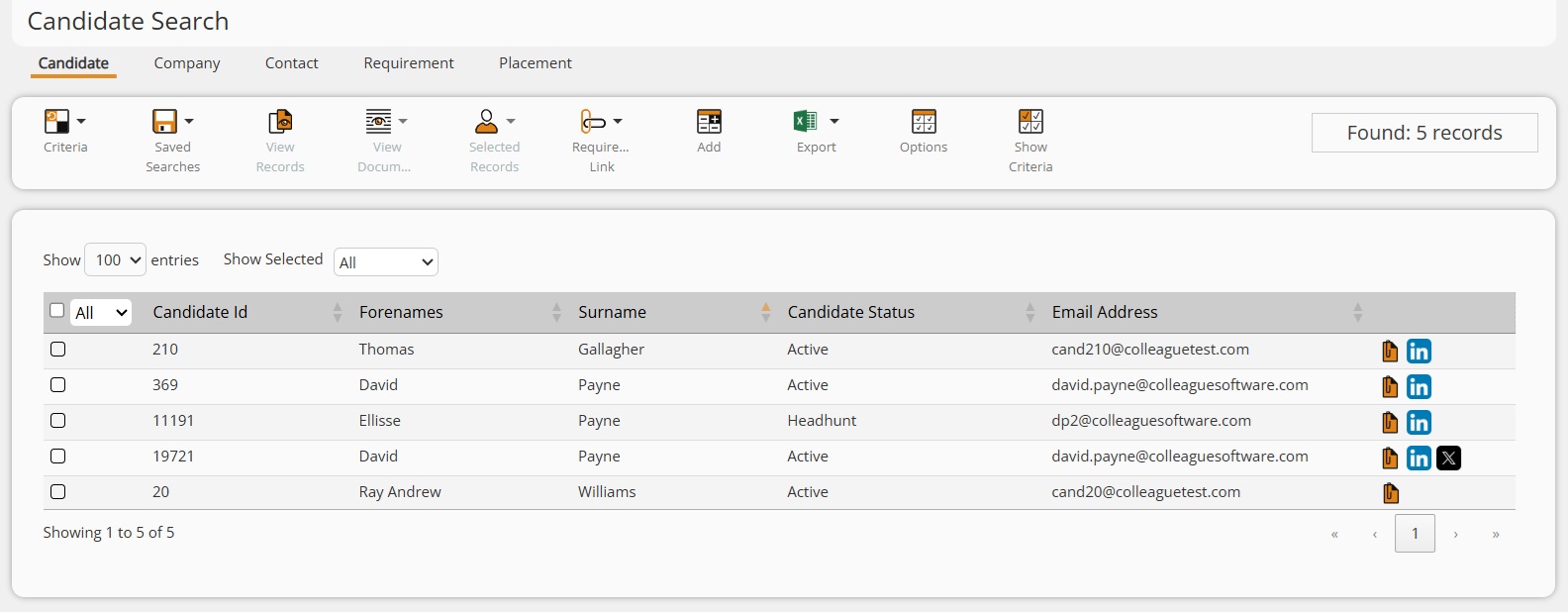
Search Results - Other Enhancements
You can now resize search result columns to your preference. Column widths are saved and persist between sessions. You can also drag and drop columns, with these preferences saved for future use. Search result multi-column sorting is now fully supported - hold Shift when clicking column headers. On 1080p+ screens, the “Show X entries”, “Show Selected” and “Save Default Sort Order” controls now sit on a single row, and the grid sizes to fill the available vertical space so the pager is always visible. Also fixed: the “Show X entries” choice and “Save Default Sort Order” now only appear once the sort order changes. Emails - Mailshot Maintenance
We’re excited to introduce a powerful new addition to Colleague - the Mailshot Maintenance page. This new feature gives users greater visibility and control over outbound eshots by providing a clear overview of all pending eshots currently being processed by the background service.
This page is accessible via the envelope icon (top right) in the toolbar. Previously sent mailshots are archived from the maintenance page every 30 days. 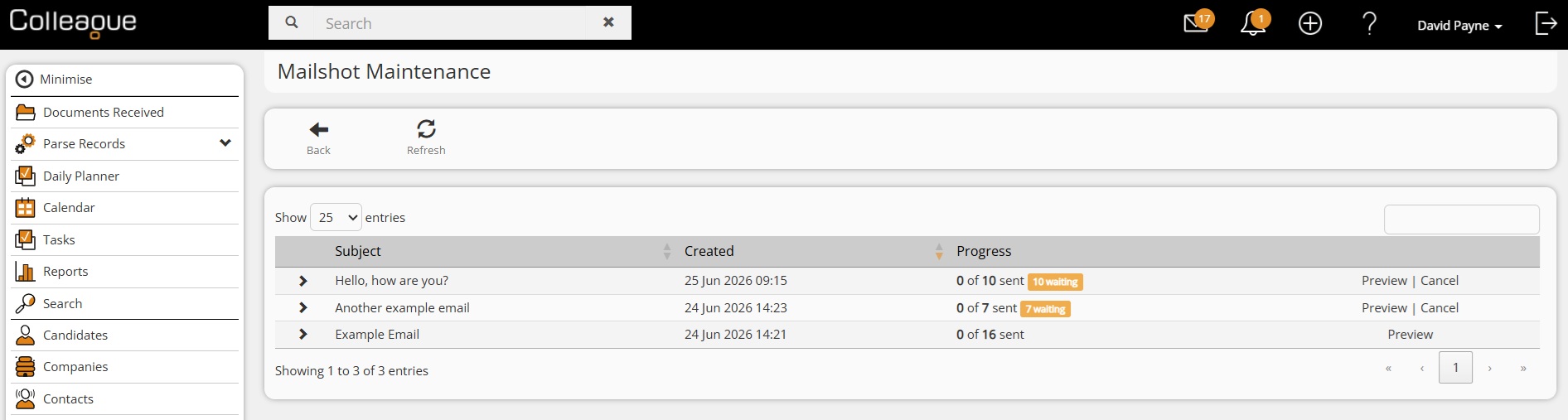
Import - ‘Import Records’ Enhanced
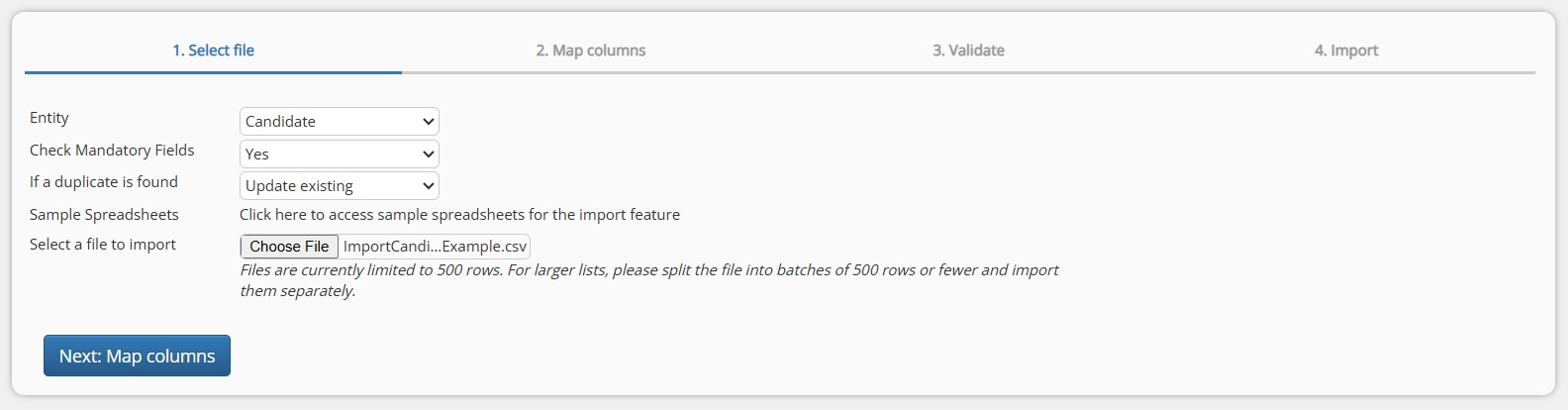
We have reworked the Import Records process to improve the way CSV files are uploaded, checked, mapped and imported. The updated process now performs more of the import work securely on the server, provides clearer validation feedback before records are committed, and gives users greater control over how duplicates are handled. Key Improvements
User Benefits
Important Notes
Click here to access the 'Import Records' user Guide
Documents - Convert to PDF
A new Convert to PDF option has been added to the Documents tab (right-click menu & Document Options) for .doc & .docx files only. When selected, it creates a copy of the Word document and converts it to PDF; the original Word document remains in the Documents tab. 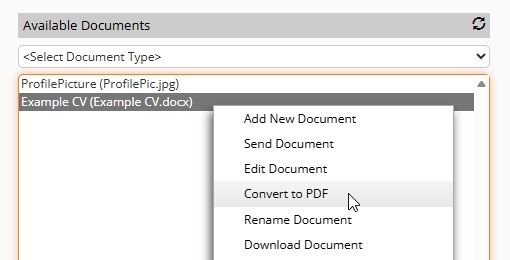
This has also been added to the email form when sending attachments - the Convert to PDF option is available from the attachment sub-menu. On selection it replaces the Word attachment with the PDF version. If the user recently edited the attachment before sending, the process ensures the latest updates are retrieved as part of the conversion. 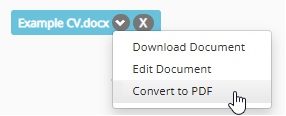
Contact - Mark As Leaver: Copy Skills from New Company
When on a Contact record and using ‘Mark As Leaver’ to create the Contact against another Company, a new “Copy Skills From New Company” tickbox has been added. When ticked, the new company’s skills are copied onto the newly created contact; when unticked, no company skills are copied. 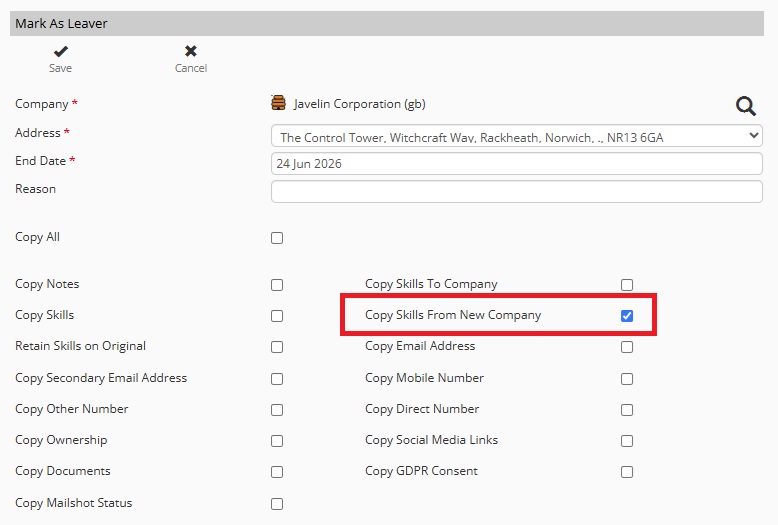
History - See Who an Email Was Sent To / From
Email history now displays the “To” address for outbound emails and the “From” address for received emails, above the subject line. This update was released mid-sprint in June as it is a background service update (separate to the main web app). Company Contacts - Archive Contact from the Contacts tab
On a Company record’s Contacts tab, we have added Archive Contact(s) to the right-click menu, with the option to select multiple records. 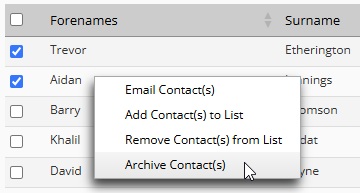
This option is available based on your User Group Permission access to archive Contact records. Users - User Notes and Tasks
As a supporting update to user management, two new options have been added to the User record in Colleague:
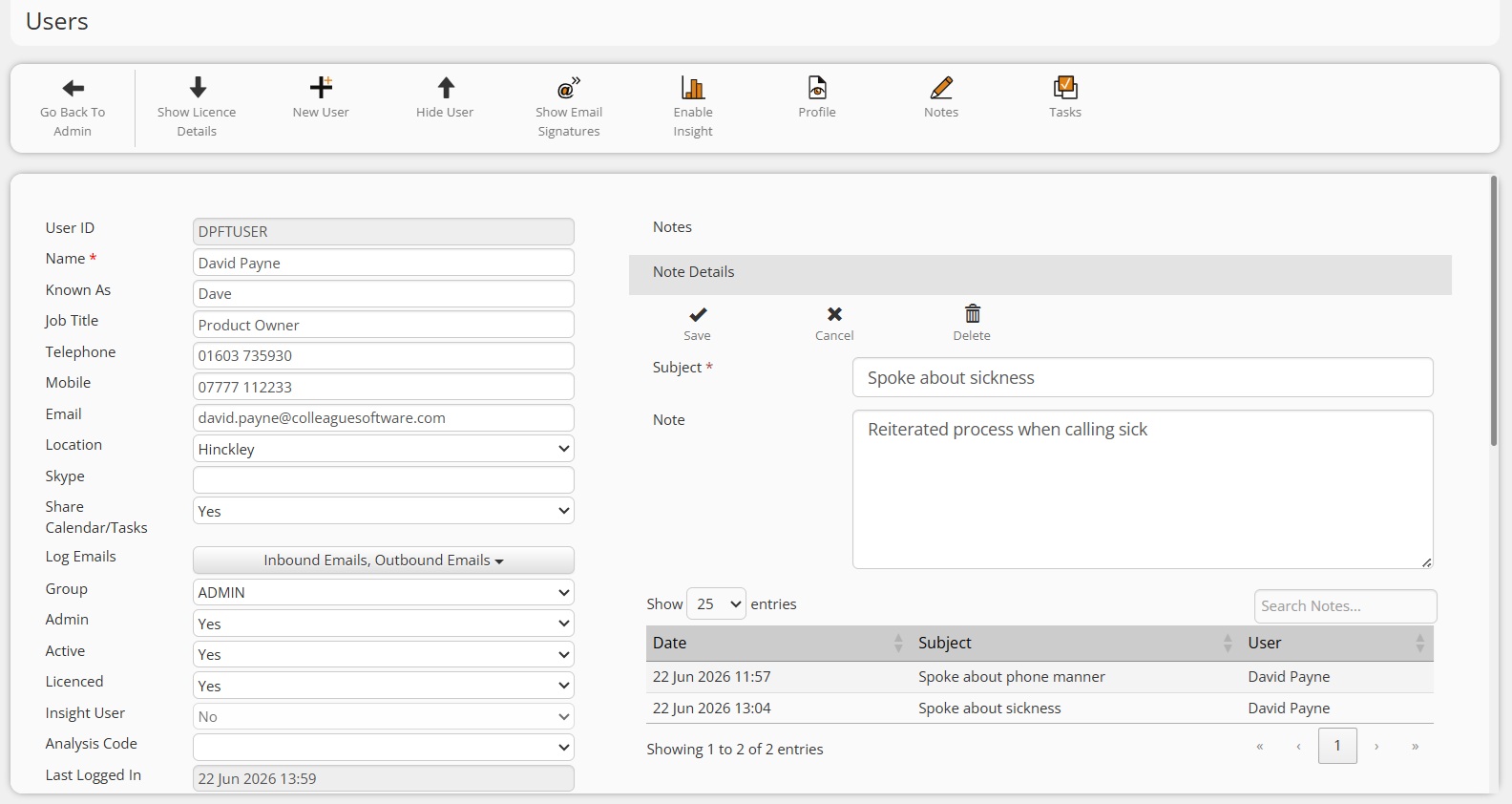
These enhancements lay the groundwork for a forthcoming ‘User Appraisal Report’, designed to provide insight into user activity against targets, alongside a complete audit trail of notes taken and tasks assigned during appraisal discussions - a big step forward in helping teams track performance, accountability and engagement within the CRM. Email - Updates to GDPR Functionality
We have updated the GDPR functionality on the email form so there are now three options via the ‘thumb icon’:
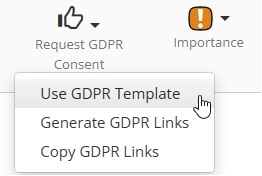
The GDPR merge fields still work as standard, converting on send if they have not already been converted via ‘Generate GDPR Links’. Templates - Default Attachments column
Within Admin, under the Templates area, there is now an ‘Attachments’ Yes/No column advising whether the template has a default attachment associated with it.  Bug Fixes Bug FixesSkill grades now save and persist correctly
Resolved an issue where graded skills disappeared after adding a new skill, and where newly applied skill grades appeared to save in the UI but were not written to the database. Skill grading now persists reliably across the main UI, Portal and BigScreen. Candidate Type search returns exact matches only
Searching on the Candidate Type field previously returned candidates with similarly-named types (e.g. a “Contract” search also returning “Logistics Contract” & “Supply Chain Contract”). The search now matches the selected type(s) exactly rather than using a partial match. Requirement Summary report now filters to the current requirement
The Requirement Summary tab was returning data for all requirements instead of the one being viewed. The report is now correctly filtered by the current Requirement ID. Company “Include Leavers” default setting applies immediately
Changes to the Company > Contacts “Include Leavers” default (and global/personal settings generally) previously only took effect after a manual cache clear. Setting changes now invalidate the cache so they apply on the next page load. Infinite-scroll search performance
Search results were slow and unresponsive (especially when selecting rows) when pagination was disabled. This has been optimised so both infinite-scroll and paginated modes stay responsive. “Working for Us” banner shows the correct company
For candidates whose contract was extended or amended onto a different company, the “Candidate is currently working for us” banner could show the original company while the placement link pointed elsewhere. The banner now reflects the currently active placement’s company and job title. Current Employer no longer shows a stale / wrong company
The candidate Current Employer, Current Manager and Current Job Title could show stale information for contracts that had been extended, amended or ended early. These fields now evaluate the placement’s authoritative dates, ended contracts no longer appear as the current employer, and selection is deterministic where situations overlap. C++ now detected when parsing and scanning
“C++” was not being recognised as a skill by the CV Parser, Scan Document or Scan Notes features (also an issue on the Skills tab search bar). It is now correctly picked up and assigned, consistent with the earlier C# and F# fixes. “Allow Selection” now respected on Task subject lookups
The “Allow Selection” flag on Admin > Lookups > Calendar Text now applies to the Task subject autocomplete (as it already did for Calendar Events), across all task creation entry points. Error adding a Requirement to a List
Resolved an unhandled error when adding a requirement to a list, which previously returned an error page stating the entity could not be added. The underlying cause was a malformed entity ID (such as an empty string from a trailing comma) failing to parse. Invalid or malformed entity IDs are now handled gracefully, and requirements add to lists successfully. Data tables issue with duplicate column names
Fixed an issue where two custom fields with similar names (for example “Net Margin” and “Net Margin %”) displayed the same value instead of their separate figures. Columns whose labels differ only by spaces or special characters now resolve to distinct values across the main Search grid and all selection/list grids. Changes not saving before leaving a page
An instance where a user could update a field and then quickly leave the record before the database had time to update has now been caught - the user is now warned. Disallow leading / trailing spaces in the User form
When adding a new User to a record, the ‘Save’ process now strips out any leading spaces on any of the User fields. Flags clearing on filtered search
When editing the criteria of an existing search result in which several records had been flagged, the flag settings could be lost as the search was modified or combined with another. This has now been resolved. Watchdog alerts with per-pass throttling
Watchdogs have been updated with throttling controls to support scenarios where a watchdog causes heavy processing load on the database. As part of this update, it is now mandatory to set an expiry date on a Watchdog. Skill selection (moving the mouse)
When adding a skill to a record, moving the mouse at the moment of selection could occasionally cause the addition to fail. This has now been resolved. |