
Leads User GuideHow to use and work with Leads in Colleague.
 Leads LeadsColleague includes the ability to create Leads. As a feature, this is for the benefit of Sales & Business Development teams. This functionality is enabled via a User Group Permission: Admin > User Group Permission > Leads (Permission Folder) > Show Leads. There is also a permission to authorise whether a table of Leads within a Lead Selection Screen can be exported into Excel: Admin > User Group Permission > Search (Permission Folder) > Export Lead Selection Results. If enabled, from the Quick Create menu, the option to 'Create Lead' will be included: 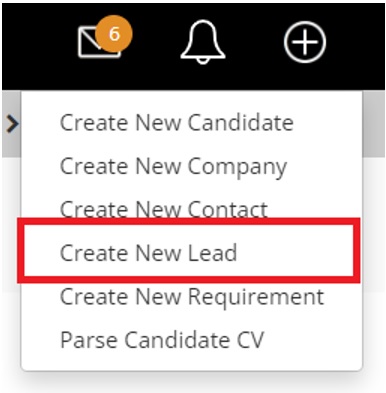
From the main navigation menu the 'Leads' option will be shown between 'Contacts' & 'Requirements'. 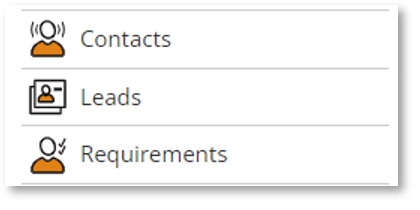
On selection of the Leads option, you will be able to search for existing Leads via a selection screen: 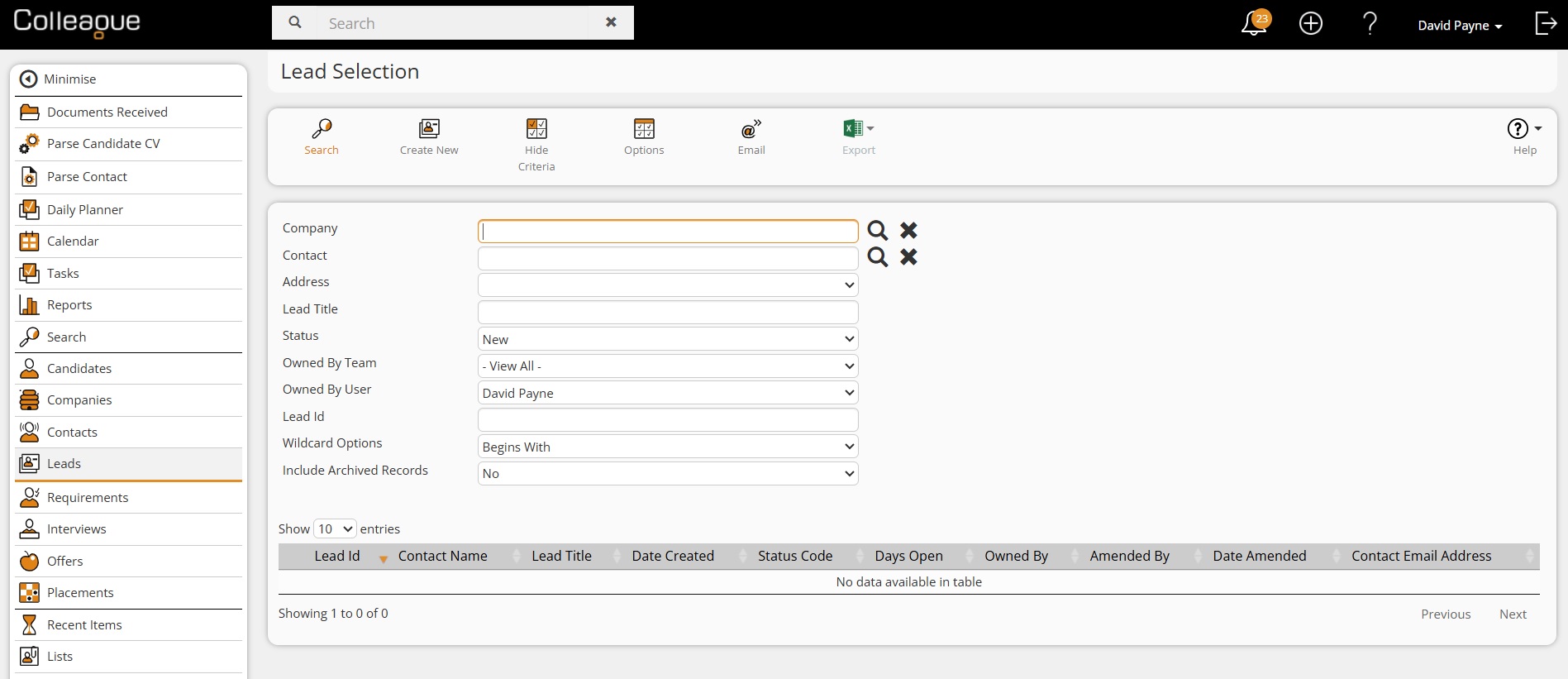
Leads can also be searched upon via the Quick Search. A Lead can be linked with an existing Contact/Company or can be a stand alone record to track a potential opportunity. The Lead record consists of the main tabs of a standard record:
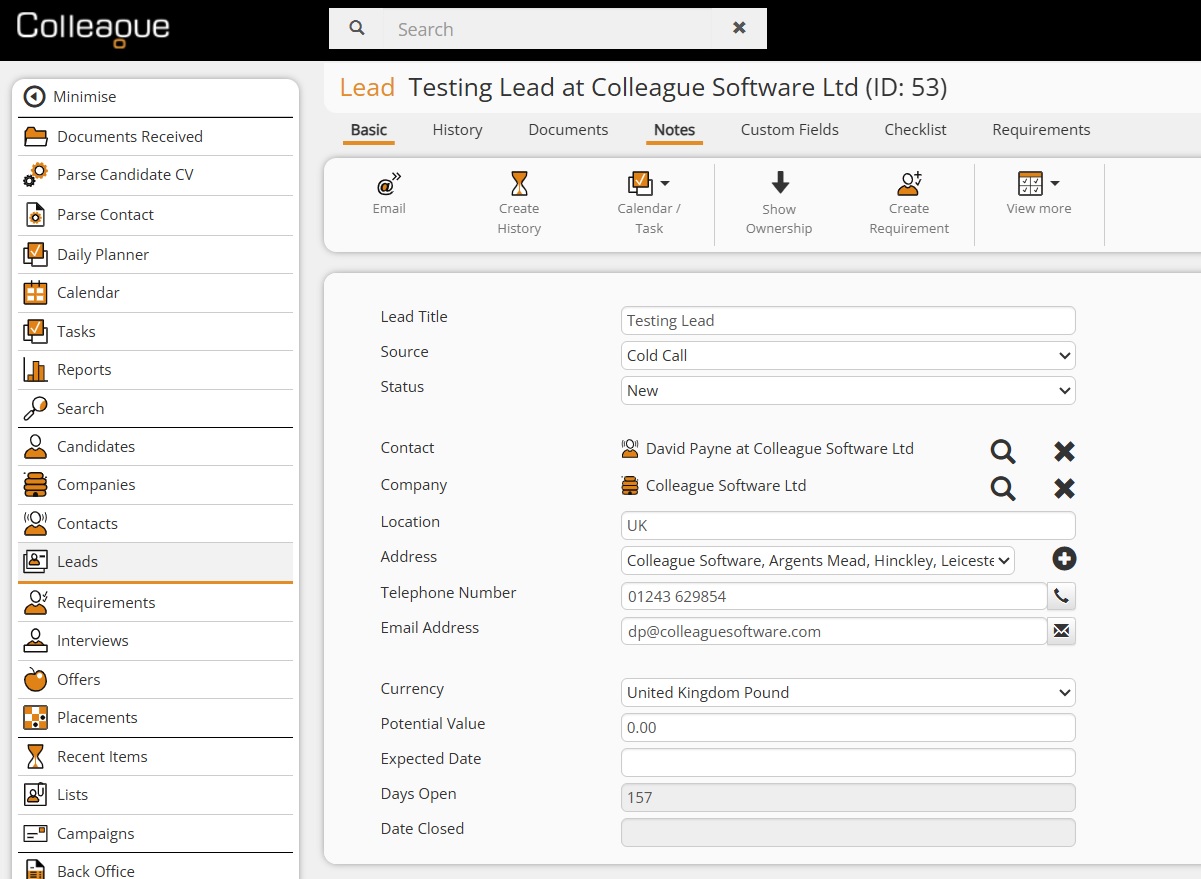
The Lead record has its own Status and Source lookups which can be edited by an Administrator. Standard Status lookup will include:
There is also a 'Close Lead' flag on the Status lookup which specifies whether that status code represents the closure of a Lead (i.e. Closed, Lost, On Hold). There is a 'Days Open' field which will auto calculate the number of days since the created date of the Lead. This count will cease if the Lead has been closed (as per the above settings). There is also a 'Latest Stage' field which can be viewed from the Leads Selection Screen table and will advise the last completed Checklist Item as per the Checklist sequence. The Lead record consists of the main features of a standard record:
When a Requirement has been created (or if multiple Requirements have been created) from a Lead record, you will be able to access the Requirements from the Requirement tab. When on a Requirement, if it has been created from a Lead you will have a link back to the Lead record. 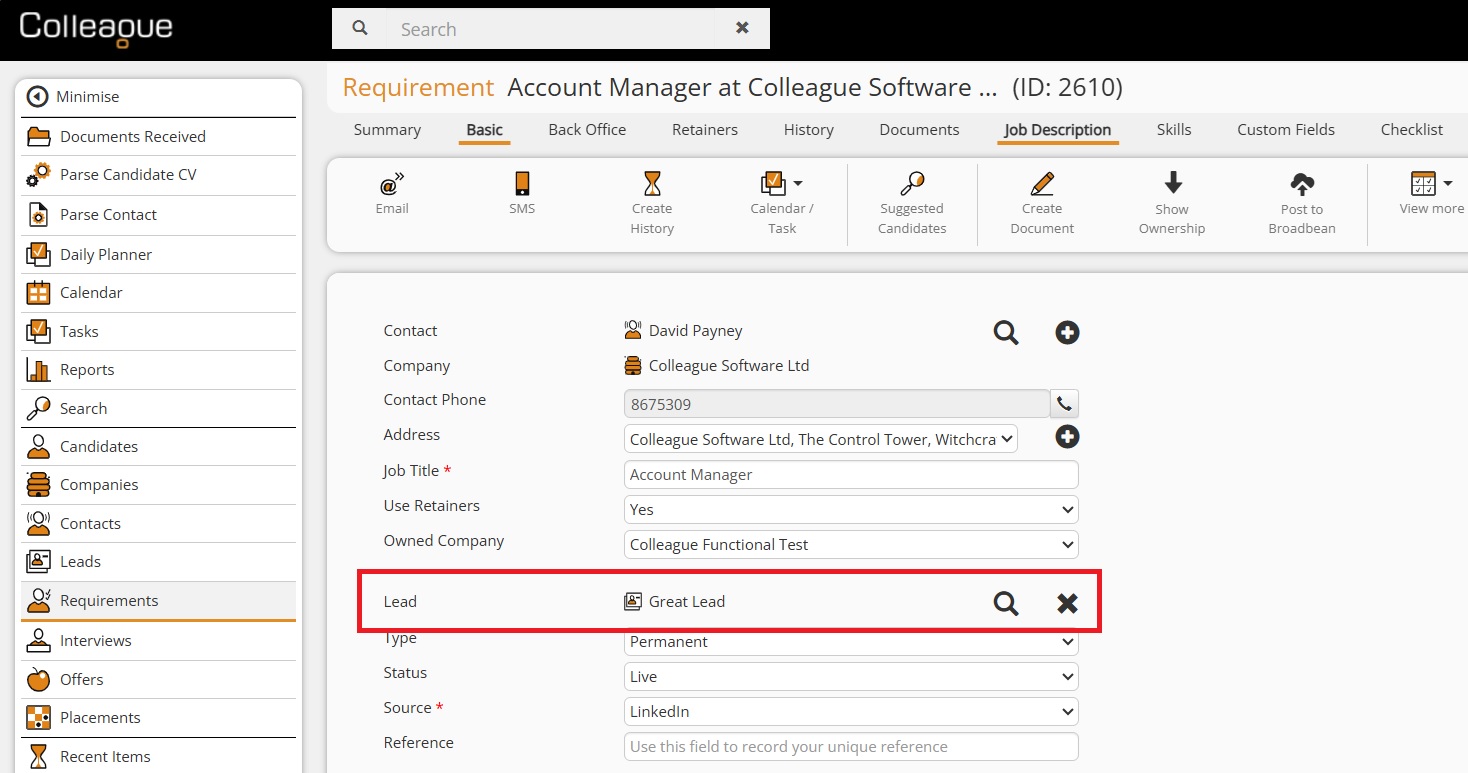
New Leads can be reported on via the Consultant Activity Report: 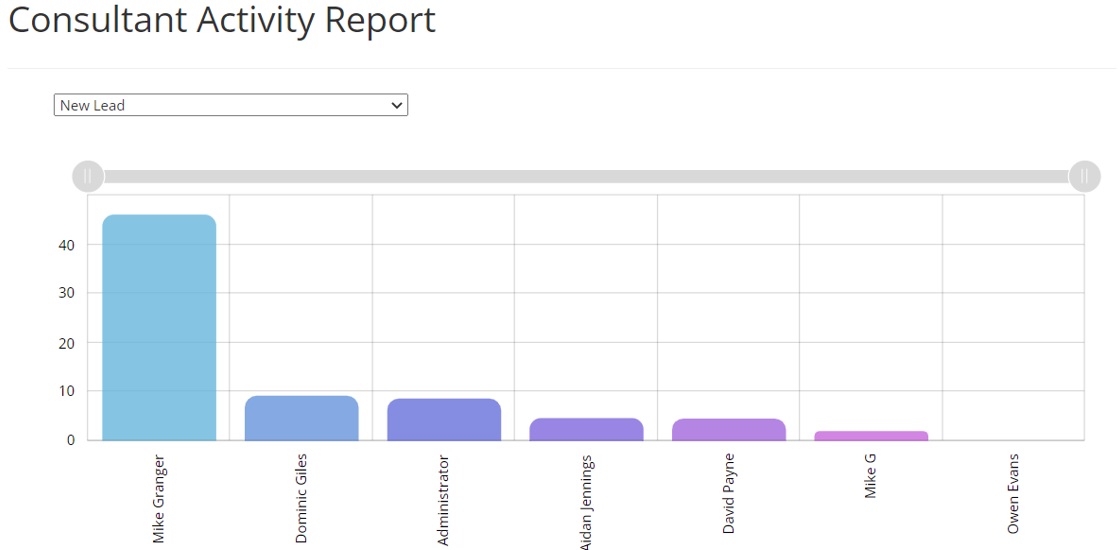
User Overview Panels: 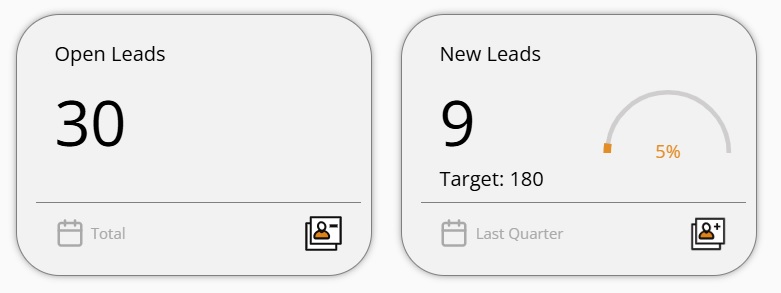
Team Overview: 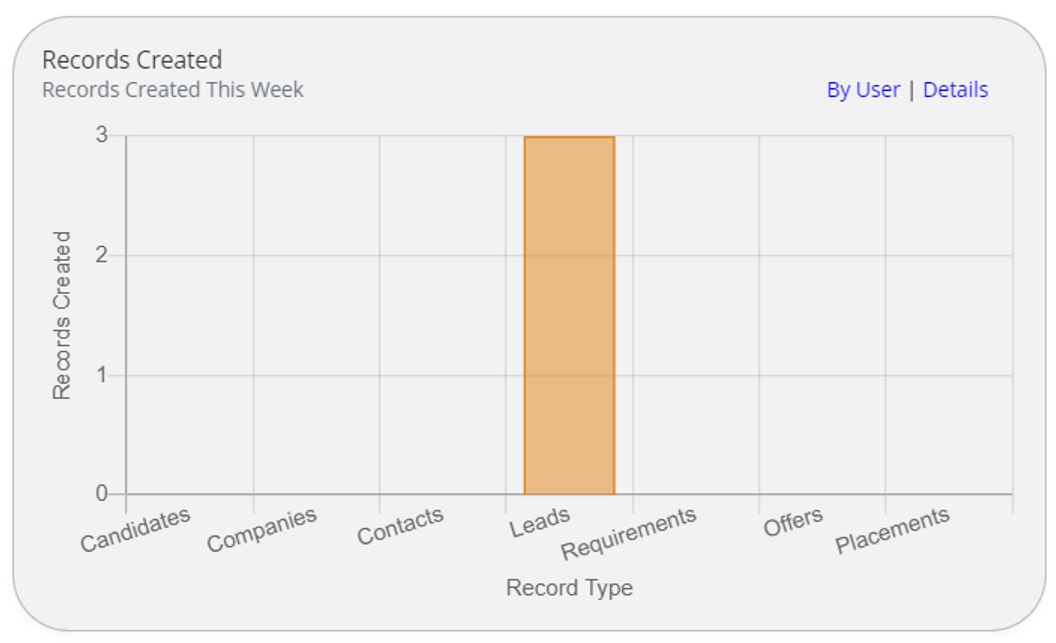 |