
Bulk CV Parse User Guide
How to parse many CVs at once from your own OneDrive folder.
The 'Bulk CV Parse' feature lets you parse multiple CVs in the background instead of one at a time. You will be able to move CVs into a folder in your own OneDrive and leave them for Colleague to pick up automatically, creating or updating candidate records for you.
Key information
- Each user has their own 'drop' folder in their own OneDrive.
- Only Word (.docx) and PDF (.pdf) CVs are parsed. All other file formats are moved to an 'Ignored' folder.
- Colleague checks your folder every 15 minutes and parses up to 10 files per check.
- New candidates are created with the CV attached. This includes auto-skills and work history (depending on your preferred settings).
- You have an allowance of CVs which can processed in this manner based the number of licenced Users on the system (1,000 per Licenced User, per rolling 12 months). Users can be configured with a higher quota as well as given the option to take from your company's overall allowance (once they have used their quota).
- Additional quota can be purchased from Colleague.
- You get an email summary after each batch.
Everything a normal CV parse does on the review screen will still happen.
- The CV is attached
- Skills and Experience are created (based on settings)
- A profile picture is saved if the CV has one
- Any templated documents are created alongside the creation process (such as a formatted CV)
- Previous emails within your inbox are logged as history (based on settings)
 Before You Start Before You Start
Four things need to be in place:
- Bulk CV parsing must be switched on for your company. If it is not, the page tells you so and you should contact Colleague Support.
- Your Colleague login must be connected to Microsoft 365, because the drop folder lives in your own OneDrive.
- Your User Group needs the Bulk Parse CVs permission set to "Full Access". This lets you set up your folder, drop CVs and change your options. "Read Only" lets you see the page but not act on it.
- You must be an active, licensed Colleague user.
Setting Up Your Drop Folder
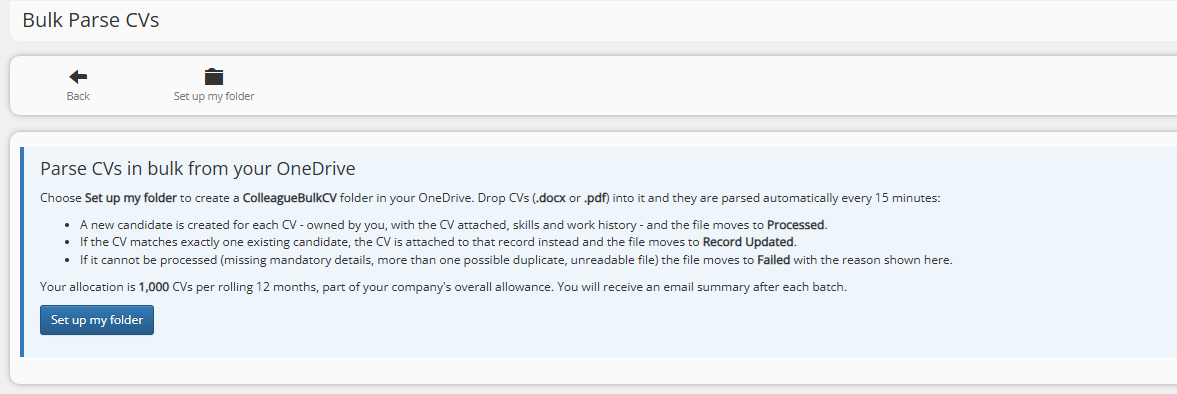
Open the left-hand menu, expand the Parse CVs group and choose Bulk Parse CVs.
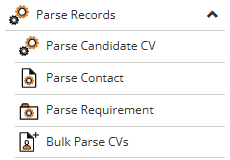
The first time you visit, the page explains what will happen and offers Set up my folder, both on the toolbar and as a button in the panel. Choose it.
Colleague creates a folder called ColleagueBulkCV in your OneDrive, containing below four sub-folders:
| Folder |
What it is for |
| ColleagueBulkCV |
Drop your CVs into this folder. |
| - Processed |
CVs that created a new candidate record are moved into here. |
| - Record Updated |
CVs that were attached to an existing candidate are moved into here. |
| - Failed |
CVs that could not be completed are moved into here, with the reason shown on the table. |
| - Ignored |
CVs that were ignored due to them being an invalid file format will moved into this folder. |
Note: Do not rename, move or delete these folders. If the folder is missing the page warns you. You will then need to Set up my folder again.
 Adding CVs Adding CVs
Use the Open OneDrive Folder button on the toolbar to open your folder in a new tab, then drag your CVs in - or copy them in from File Explorer if OneDrive is synced to your PC.
You can drop as many CVs as you like. Colleague takes up to 10 per check, so a large batch is worked through over several checks. Files wait in the folder until their turn.
Note: Only .docx and .pdf files are parsed. Anything else will be added to the 'Ignored' folder. An old .doc CV needs to be saved as .docx first.
What Happens To Each CV
| Outcome |
What Colleague does |
Where the file goes |
| New candidate |
Creates a candidate owned by you, attaches the CV, and adds skills, work history and a profile picture where the CV has them. |
Processed |
| Record updated |
The CV matches exactly one existing candidate, so the CV is attached to that record instead of creating a duplicate. |
Record Updated |
| Failed |
The CV could not be completed - mandatory details are missing, more than one possible duplicate was found, or the file could not be read. |
Failed |
| Ignored |
The CV was not in the required file format, so it failed the validation check and was ignored. |
Ignored |
Note: Every file sent to the parser counts towards your allowance, including ones that fail.
The Bulk Parse CVs Page

| Button |
What it does |
| Back |
Returns to the previous page. |
| Refresh |
Reloads the bulk cv file list immediately. The list also refreshes itself every few seconds. |
| Open OneDrive Folder |
Opens your drop folder in OneDrive in a new tab. |
| Show Options |
Drops down the 'Options for new candidates - Settings to create any templated documents and/or backdate emails. |
| Show files from the last |
Chooses how far back it should go when displaying the CVs in the 'ColleagueBulkCV' folder - 7 days, 30 days, 90 days or 12 months. 30 days by default. |

The bar shows how much of your allowance you have used in the last 12 months, and how much is left. It turns amber when you are close to the limit and red when it is used up. Where the figures are available you also see how much of the company's overall allowance has been used, and - if you have been given access to them - how many additional company credits remain.
Folder last checked tells you when Colleague last looked in your folder, and any problem reaching OneDrive is shown here too.
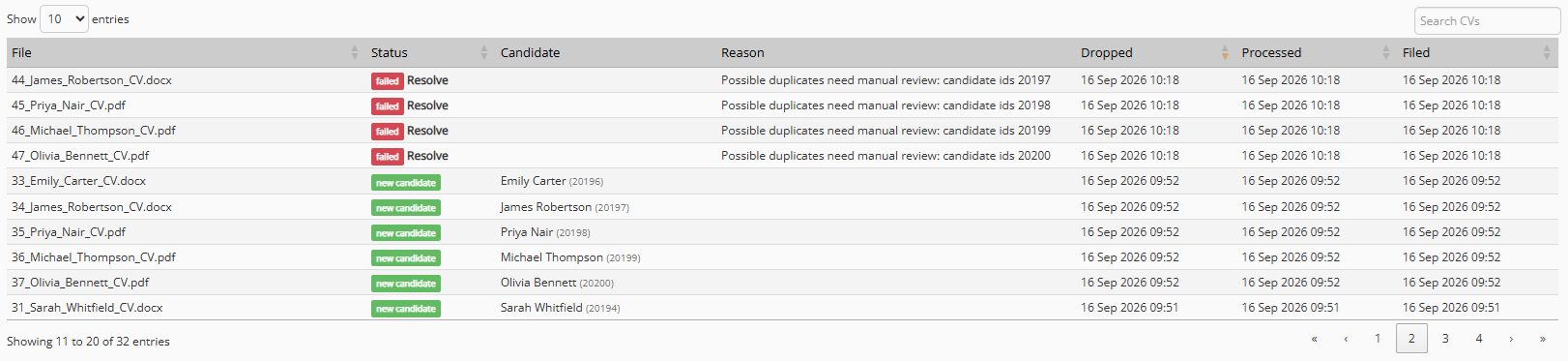
| Column |
Shows |
| File |
The file name, linked to the file in OneDrive. |
| Status |
Where the file has got to - see the table below. |
| Candidate |
The candidate that was created or updated, linked to the record. |
| Reason |
Why a file failed, or what it is waiting for. |
| Dropped |
When the file appeared in your folder. |
| Processed |
When Colleague parsed it. |
| Filed |
When the file was moved to its outcome folder. |
Use the Search CVs box above the list to find a file by name, candidate or reason.
| Status |
What it means |
| ignored |
Not a .docx or .pdf file, so it has been moved to the 'Ignored' folder. |
| waiting |
In the folder, waiting for the next check. |
| processing |
Being parsed now. |
| new candidate |
A candidate was created. |
| record updated |
The CV was attached to an existing candidate. |
| failed |
The CV could not be completed. The Reason column says why, and a Resolve link may be offered. |
Options For New Candidates
Choose Show Options on the toolbar to open this panel. Depending on your Global Settings, these settings will either be your specific settings (remembered) or set by system defaults.

- Create template documents (e.g. formatted CV) - generates the document templates that are flagged 'Generate on parse' for your user group, exactly as the single-CV review screen does. The panel tells you how many templates are set up; if there are none, ask your administrator to flag one under Admin > Templates. Where a template has Default Document set to Yes, the document it generates becomes the candidate's default document in place of the raw CV.
- Log my past emails with the candidate - searches your own mailbox for emails and SMS exchanges with the candidate's addresses and logs them as history. Choose No, All emails, or Last ... days. This option only appears if email logging is switched on in your Candidate settings.
Note: Email logging uses your own mailbox and adds time to each parse, so it is set per user. It only applies to newly created candidates, not to CVs attached to existing records.
Resolving A Failed CV
Where a CV was readable but could not be completed - mandatory details missing, or more than one possible duplicate - the failed row offers a Resolve link.
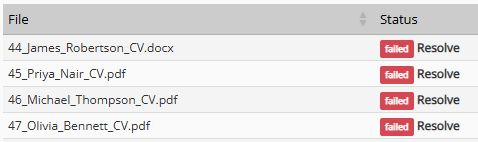
Resolve opens the CV in the normal single-CV review screen with everything already parsed, so you can fill in the missing details or decide what to do about the duplicates and then register the candidate as usual. The CV is not parsed again and no further allowance is used.
Once you finish, the row is closed off and the file is moved out of Failed into Processed or Record Updated.
Note: Stored parse results are kept for a limited period (90 days by default), after which the Resolve link is no longer offered and the CV would need parsing again.
 Emails You Will Receive Emails You Will Receive
| Subject begins |
Sent when |
| Bulk CV Parse - N files processed |
After each batch, summarising what happened to each file. |
| Bulk CV Parse - X% of your allowance used |
Your own allowance is running low. |
| Bulk CV Parse - X% of the company allowance used |
Your company's overall allowance is running low. |
| Bulk CV Parse paused - allowance reached |
Your own allowance is used up. |
| Bulk CV Parse paused - allowance and credits used up |
Your allowance and the company credits available to you are used up. |
| Bulk CV Parse paused - company allowance reached |
The company allowance is used up, so nothing can be parsed for anyone. |
| Bulk CV Parse - additional credit pack ... |
A purchased credit pack is running low or is used up (sent to administrators). |
Note: Paused does not mean anything is lost. Files simply stay in your folder and are picked up as soon as allowance frees up or more is made available.
Allowances And Credits Explained
- Your company's allowance is worked out from the number of Colleague licences it has purchased, multiplied by 1000 CVs per licence, per rolling 12 months.
- That allowance is then divided between users by your Colleague administrator. If no specific figure is set for you, you will get the default share of one licence (1,000 CVs).
- Rolling 12 months means the last 12 months from today, not per calendar year, so allowance frees up gradually as older parses age out.
- Additional credits can be purchased from Colleague. There is a company pool of credits which can be used once your own allocation is spent - if your administrator has ticked Use credits option for your User.
- Every CV sent to the parser counts, including failures, so tidy up obviously unreadable files before dropping a large batch.
For Administrators - Bulk CV Parse Quotas
Administrators manage the feature from Admin > Bulk CV Parse Quotas. The page needs the Bulk CV Parse Quotas User Group Permission enabled.
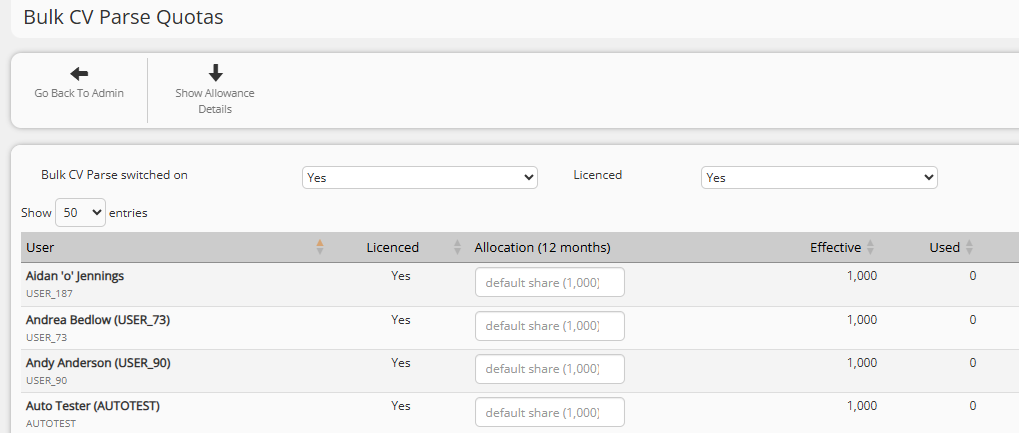
Switching The Feature On And Off
Bulk CV Parse switched on turns the whole feature on or off for the company. With it off, users see a message telling them to contact Colleague Support.
The Licenced filter controls which users are listed. It shows licensed users by default; set it to No or View All to see users who are no longer licensed but whose parses in the last 12 months still count against the company allowance.
The Show Allowance Details toolbar button drops down a summary of the company position: purchased licences and the CVs each one carries, the total allowance, how much has been used and remains, any additional credits bought, used and remaining, and how much of the allowance is still unallocated.

| Column |
What it shows |
| User |
The Colleague user. |
| Licenced |
Whether the user is licensed. Unlicensed users cannot parse, but their past parses still count. |
| Allocation (12 months) |
The user's allowance. Leave blank to give them the default share of one licence. |
| Effective |
The allowance actually in force for that user. |
| Used |
CVs parsed by that user in the last 12 months. |
| Remaining |
What is left, flagged where the company limit or credits are in play. |
| Use credits |
Tick to let the user draw on the company's additional credits once their own allocation is used up. |
| Folder |
Whether the user has set up their folder, and whether it is active or paused. Use pause / resume to stop or restart a user's folder. |
| Last processed |
When Colleague last parsed a CV for that user. |
Two rules are enforced when you save an allocation: a user cannot be set below what they have already used, and the total allocated across all users cannot exceed the company allowance.
To buy additional credits, contact Colleague at support@colleaguesoftware.com.
 Troubleshooting Troubleshooting
| What you see |
Why |
What to do |
| Bulk CV parsing is not enabled for your company |
The feature is switched off. |
Contact Colleague Support, or ask your administrator to switch it on under Admin > Bulk CV Parse Quotas. |
| Microsoft 365 is not connected |
Your Colleague login is not connected to Microsoft 365. |
Connect Microsoft 365 from your profile, then return to the page. |
| Your folder could not be found in OneDrive |
The folder has been renamed, moved or deleted. |
Use 'Set up my folder' to recreate it, then move your CVs back into it. |
| A file shows as ignored |
It is not a .docx or .pdf. |
Save the CV as .docx or .pdf and drop it in again. |
| Nothing seems to be happening |
Colleague checks every 15 minutes and takes up to 10 files a time. |
Check Folder last checked on the page, and check you still have allowance left. |
| Allowance reached |
Your allowance, or the company's, is used up. |
Files wait safely in the folder. Ask your administrator to increase your allocation, or contact Colleague about additional credits. |
| Failed - possible duplicates need manual review |
The CV matched more than one existing candidate. |
Use the Resolve link to decide what to do in the review screen. |
| No formatted CV was created |
No document template is flagged 'Generate on parse' for your user group, or the option is switched off. |
Check Show Options on the page, and ask your administrator to check Admin > Document Templates. |
|