An Automation watches for something to happen to records of a specified Entity Type. In this event, based on the criteria of a Trigger, it enrols a record that qualifies, Filters the record (if necessary) and Runs an ordered list of Steps - with a wait between the steps and an optional exit condition to stop the sequence early (i.e. because the candidate has replied).
1
2
3
4
5
Entity Type
Trigger
Filter
Run Options
Steps
Candidate
Company
Contact
Requirement
Offer
People (Candidates & Contacts)
Record created
Field Changed (Status, Type, etc)
Stage reached (Longlist, Shortlist, CV Sent, etc)
Date approaching (Availability Date, Date of Birth)
Date elapsed (Last Contacted Date, Date Amended)
No contact in N Days (specify number of days since contact)
Saved Search gains a match (via Watchdog)
History entry added (Telephone, Meeting, etc)
No filter
Saved Search Criteria
Select whether records enrolled by a trigger should also be filtered against the criteria of a saved search.
Send external email (from your email address or specified email address)
Create a Task
Notify a User
Add a History Entry
Update a field
Add to List
Add to Favourites (List)
Add to Mailchimp Audience
Send internal email
Send a run summary (details on the outcome of the automation)
The terms used throughout this guide are:
Trigger - The criteria that puts a record into an automation - for example: record created, field changed, stage reached, a date approaching or passed, no contact for a certain number of days, or it being added to a search via a Watchdog.
Filter - The option to include the criteria of a saved search as additional criteria which the record must also match before it is enrolled.
Enrolment - A record's journey through an automation. A record can be in several automations at once, but only once per automation. The requirement stage trigger is the exception.
Step - An action in the sequence, with the option to wait and/or exit if it meets a condition. Steps run in numerical order.
Exit condition - If met, the rest of the sequence is skipped and the enrolment ends.
Scan - The background check that looks for records to enrol. Its frequency is set per automation (i.e. 'Scan every 1 hour').
Run state
Live: records are enrolled and steps are run against live data.
Dry Run: records are enrolled and every step is logged as though it would have happened, but nothing is sent or changed.
Paused: no new records join the enrolment list of the automation.
New automations start as 'Paused'. Nothing happens until you set the automation in 'Dry run' or 'Live' mode (available from the toolbar).
Switching It On
Engine switch - Global Settings > Automation > Enabled. While it is disabled nothing scans, no steps run, the Automations menu entry and the record-level tabs are hidden, and the 'Automation Maintenance' shows an alert with a "Switch the Automation Engine on" button for Users with access to view the page.
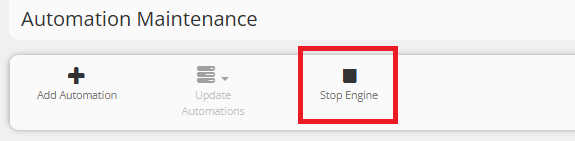
Stop All on the 'Automation Maintenance' page appears if you are an administrator (Admin flag set to 'Yes' on your User record). This switches off all automations across the system.
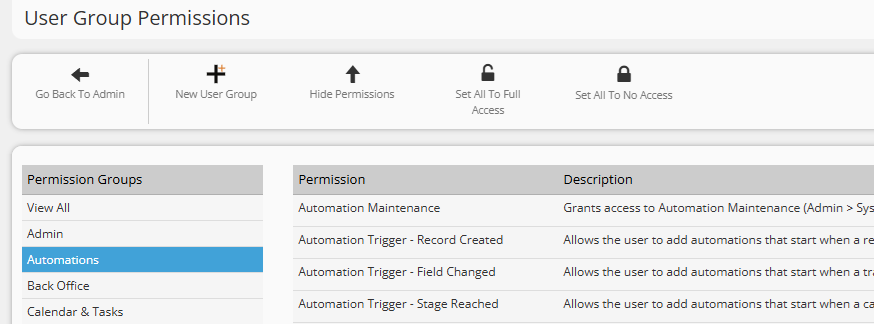
'Full Access' does everything. 'No Access' removes access.
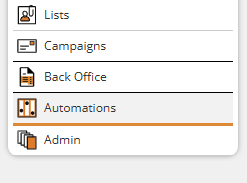
Menu Option - The left-hand menu entry Automations (above Admin), or Admin > System > Automation Maintenance. Once the engine is on, an Automations tab appears on Candidate, Company, Contact, Requirement and Placement records for every logged-in user.
The Automations List
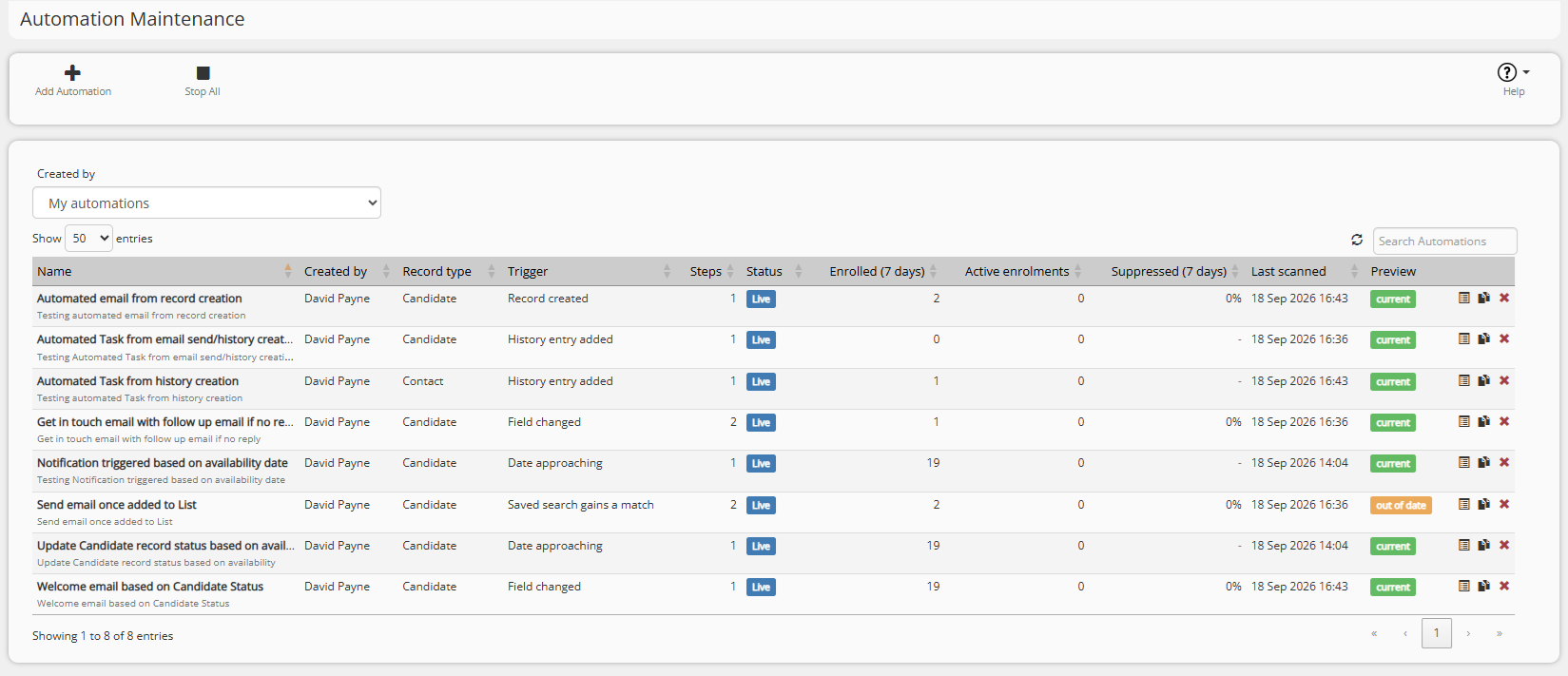
The 'Automation Maintenance' page shows one row per automation.
Column
What it shows
Name
With the description underneath. Click the name to open the editor.
Created By
The author of the automation
Record type
Candidate, Company, Contact, Requirement, Offer/Placement, People (Candidate & Contact)
Trigger
The trigger type: record created, field changed, stage reached, etc.
Steps
Number of steps configured per automation.
Status
Live, Dry Run or Paused.
Enrolled (7 days)
Number of Records enrolled in the last week.
Active enrolments
Number of Records currently mid-sequence.
Suppressed (7 days)
The % of send attempts blocked by email suppression. Amber from 20%, red from 50%.
Last scanned
When the engine last looked for records, in your local time.
Preview
Whether a preview has been run and whether it is still current or out of date because the configuration has changed since.
Actions
Enrolments and step log - list of historical enrollments and activity
Ability to copy an existing automation (will create another automation in a state of paused)
Delete automation (will ask what to do with any current enrolments).
The Editor
As you are creating or editing an Automation, the editor will have three tabs -
Configuration
Enrolments
Preview
The below options will be available in the toolbar:
Button
What it does
Back to Automations
Returns to the 'Automations Maintenance' page.
Save
Saves the configuration and the steps together.
Cancel
Disregards unsaved edits.
Preview
Saves, then runs the preview and opens the Preview tab.
Run state
A drop list: Live, Dry Run, Paused.
If you attempt to leave an Automation without saving, you will be warned that your edits will be lost without saving.
Pausing an automation that has records mid-sequence will prompt a query on what to do with them:
Leave them to finish
Pause them so they resume where they left off when you reactivate
Cancel them
Changing the steps of an active automation that has records mid-sequence also warns you. Those records carry on from their next step using the new list, and a step that no longer exists is skipped to the next one that does.
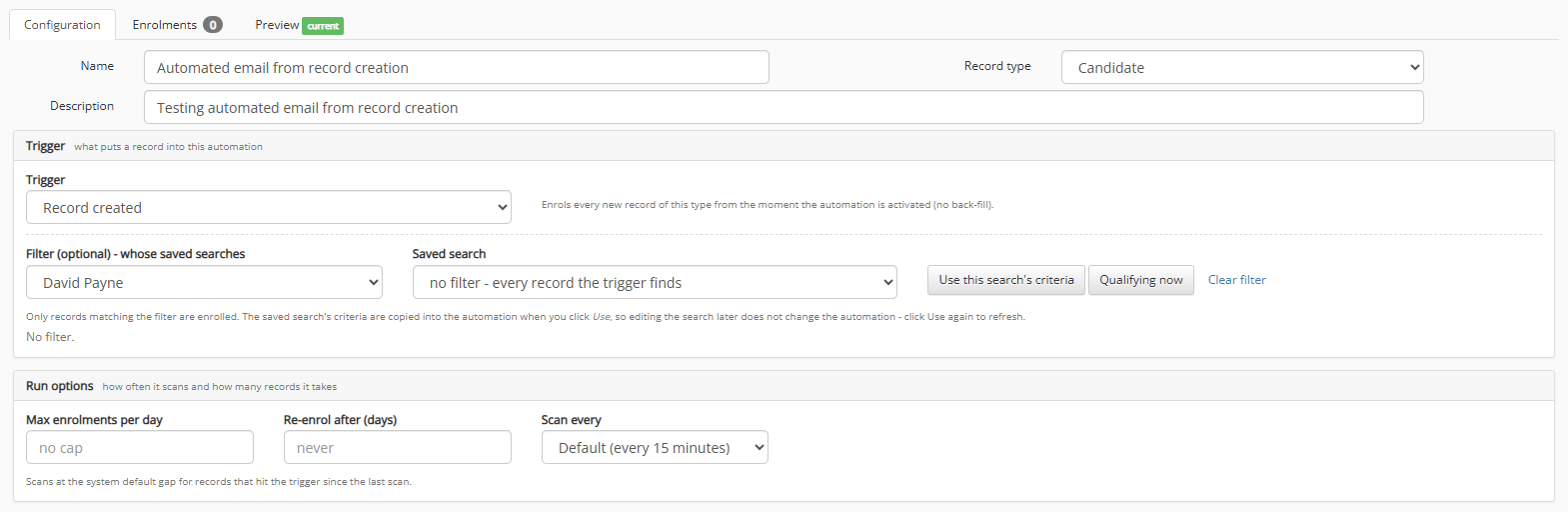
Configuration
Header
When creating or editing an automation, the Header of the Automation will contain:
Name
Record type
Description
Changing the record type after building steps warns you to re-check them, because templates, fields and exit conditions will belong to a record type.
Trigger
The Trigger drop down list offers the triggers that are relevant to the selected record type:
Trigger
Candidate
Company
Contact
Requirement
Offer/Placement
Record created
Yes
Yes
Yes
Yes
Yes
Field changed
Yes
Yes
Yes
Yes
Yes
Stage reached
Yes
-
-
Yes
Yes
Date approaching
Yes
Yes
Yes
Yes
Yes
Date elapsed
Yes
Yes
Yes
Yes
Yes
No contact for N days
Yes
Yes
Yes
-
-
Saved search gains a match
Yes
Yes
Yes
Yes
Yes
Record created. Every new record of the type from the moment the automation is active. There is no back-fill: records that already existed are never enrolled by this trigger. Use a saved-search trigger or a date trigger for those.
Field changed. Pick any field of the record type, including custom fields. In the event of a Lookup field, specify the value it must change to. Saving will switch on Colleague's 'Track Changes' option for that field (if it was off). Changes made by imports, the API or another automation's field update will also work with this trigger.
Stage reached. What this means will depend on the record type:
Candidate - The candidate is enrolled when they reach the chosen pipeline stage on any requirement (Longlisted, Shortlisted, CV Sent, Interview, Offered, Placed, Rejected, Removed). The requirement is carried so that requirement merge fields will work with email templates.
Requirement - The requirement is enrolled each time a candidate reaches the specified stage, one enrolment per candidate, so the same requirement can be in the sequence several times at once. You can specify whether this means all requirements, Requirements that you own (owned by whoever created the automation), or specific requirement IDs (comma separated).
Offer/Placement - The placement or offer record is enrolled at Offer created, Offer accepted, Offer rejected, Placement made (offer accepted or placed directly), Authorised level 1 or Authorised level 2.
Like Record created, stage triggers watch from activation onwards. There is no back-fill.
Date approaching / Date elapsed. A date field of the record type (standard fields plus the type's custom date fields) and a number of days: within the next N days, or more than N days ago. Re-checked on every scan, so set on a daily schedule by default.
No contact for N days. Records whose 'Last Contacted' date is older than N days, including records never contacted. Contact made means any history entry whose code is configured to update the 'Last Contacted' date field. Candidates, Companies and Contacts only.
Saved search gains a match. Pick a user, then select one of their saved searches. The search must have a watchdog setup against it. The editor will warn if it does not or has expired. Each record the watchdog newly finds is enrolled, on the watchdog's own schedule. The search owner keeps their normal watchdog notification.
Filter (optional). Pick a user, then select one of their saved searches for this record type, and then click "Use this search's criteria". The criteria is copied into the automation at that moment; editing the search later changes nothing until you click Use again. Only records matching the filter are enrolled. "Qualifying now" counts the records that match the filter today, before the trigger and exclusions. "Clear filter" removes it.
How Exclusions Work
A record will not be enrolled if it is already partway through this automation, or if it was previously enrolled and the Re-enrol after (days) setting is either blank (Never) or the specified period has not yet elapsed. Archived and deleted records are never enrolled. For the Requirement Stage trigger, these rules apply to the specific requirement-candidate combination, rather than the requirement on its own.
Run Options
Field
Meaning
Max enrolments per day
The maximum number of records this automation may enrol per calendar day. Blank means no cap. Records over the cap wait for the next day.
Re-enrol after (days)
How long after a previous enrolment is finished before the same record may join the automation again. Blank means never.
Scan every
How often the engine looks for records. Event triggers (created, field changed, stage, watchdog) offer by default the system setting of 15 minutes. Other options are 1 hour, 6 hours, 1 day, 1 week, 1 month. Date and no-contact triggers offer 1 day, 1 week or 1 month only.
At / On
For intervals of one day or more, specify the hour of day and either the weekday (for weekly schedules) or the day of the month (1st to 28th, or the last day of the month for monthly schedules). All times are based on your local time zone. The text below each row shows exactly when the next scan will occur.
The save message for an active automation tells you when the next scan is due.
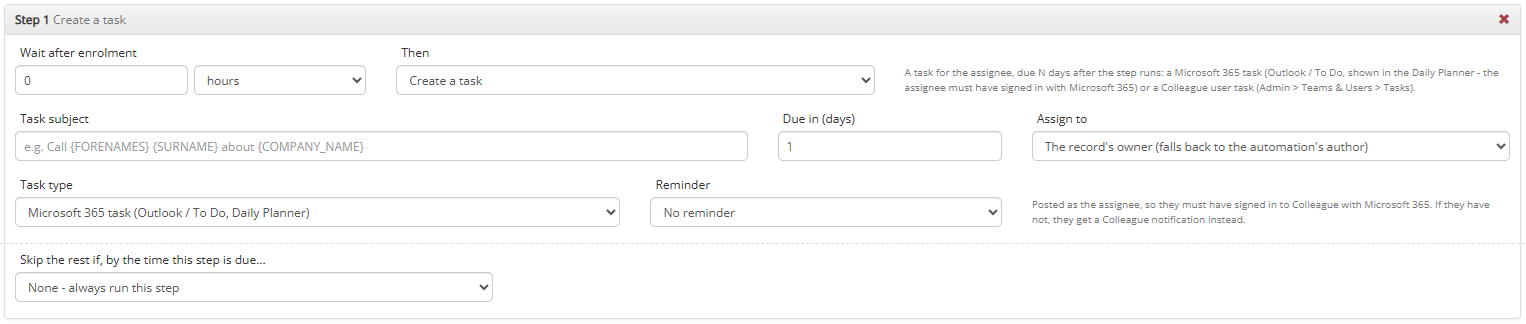
Steps
Add Step will add a new step to the automation. Use the arrows on a step to reorder the step sequence and the cross icon to remove a step.
Each step will have the following options:
Wait after enrolment / after step - Specify the amount of hours or days before this step should run. A new step will default to 0, so it runs as soon as the previous step has run, or on enrolment if it is the first step.
Then - Select an action (listed below).
Skip the rest if, by the time this step is due... - The exit condition.
Actions
Action
Record types
Fields
Send an email
Candidate, Contact
Email content: either a saved email template or a bespoke email written within the automation.
Log against history code: default 'Automation - Email Sent', which does not count as contact made, so it cannot satisfy this automation's own exit condition; choose another code to opt in.
Send at hour (blank will mean as soon as due).
Importance. High, Normal or Low.
Send as: the automation's author (the mailbox of whoever created the automation) or a fixed email address you type.
Create a task
All
Choose between a 365 Task (synchronised with ToDo) or a 'User Task' (Colleague specific task).
Subject (merge fields work), Due in (days), Assign to: the record's owner (falls back to the creator), the record's creator, or a named user.
Notify a user
All
Notification bell icon (top right in toolbar). Advise who to notify.
Add a history entry
All
History code (defaults to 'Automation', does not update 'Last Contacted' date) and allows you to enter text.
Update a field
All except Offer/Placement
Update fields based on the chosen entity:
Candidate: Candidate Status or Mailshot Status
Contact and Company: Mailshot Status
Requirement: Status.
The value must be one of the field's lookup values. A history entry also records the change.
Add to a list
All
Select one of the User's lists (including shared lists). Skip if the record is already on the list.
Add to the author's hotlist
All
Adds the record to the 'Favourites' of the user who created the automation.
Add to a MailChimp audience
Candidate, Contact
Add to a specified Mailchimp Audience, including optional tags.
Send an internal email
All
Send an email about a record to your own people: choose users and/or type an email address, enter subject and body, sent from the notification address (notifications@colleaguesoftware.com). Not subject to record email suppression.
Send a run summary
All
One email per scan that enrolled records, not per record, sent to chosen users or email addresses, saying how many joined, with a link to the automation. Subject and body are pre-filled.
Merge fields. Within the Step Header, you wll find the option to select a merge field. These merge fields will be based on the chosen entity type. Choose a merge field and then select "Insert merge field". The merge field will be added whereever your cursor is currently placed.
Merge fields will appear as they do on Email and Document Templates (i.e. {FORENAMES}). There are also additional merge fields such as {RECORDLINK} which give a link to the record for internal emails, and summary merge fields such as: {AUTOMATIONNAME}, {ENROLLEDCOUNT}, {RUNDATE} and {AUTOMATIONLINK}.
Email suppression. Before an email or MailChimp step runs, the engine checks the record may be emailed, for there are several steps:
It needs a valid email address
Record must not be archived
Its mailshot status must authorised that it can be sent (Allow All or Email Only)
GDPR consent must given or be blank. If GDPR consent has been requested and has either been denied or is pending response, it will be supressed.
A blocked record is logged as suppressed, not failed, and the sequence carries on. The following reason codes will be given:
NO_EMAIL
ARCHIVED
MAILSHOT_STATUS
GDPR_NO_CONSENT
MAILCHIMP_RULE
DAILY_CAP - When the system-wide daily email cap has been reached; this step will retry at 08:00 the next day.
Who sends. The automation's author must be an active/licenced user with an email address and have a Microsoft 365 account that has connected to Colleague.
Otherwise the email falls back to the notification address and the step log says why. Internal emails and run summaries always come from the standard Colleague notification address (notifications@colleaguesoftware.com).
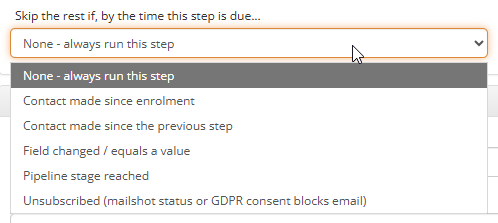
Exit Conditions
Exit conditions are checked when the step becomes due, before it acts. If met, this step and every later step are skipped and the enrolment ends as 'exited' with the reason.
Option
Meaning
None
Always run this step.
Contact made since enrolment
Any contact-made history on the record since it was enrolled. Emails this automation sent do not count unless you gave them a contact-made history code.
Contact made since the previous step
The same, but since the previous step ran.
Field changed / equals a value
A field of the record now equals a value, or has changed at all since enrolment (tick 'has changed').
Pipeline stage reached
Candidates only: the candidate reached a stage, on the requirement that enrolled them or on any requirement.
Unsubscribed
The record's mailshot status or consent now blocks email.
Whatever you choose, a record that is archived or deleted always leaves the sequence.
Enrolments and Monitoring
The Enrolments tab is available once the automation has been saved. For a period you select (7, 30 or 90 days, all, or specifc date period) it shows:
Enrolments in the period - Enrolled, still in the sequence, completed, exited early, failed, cancelled, and how they ended by exit reason.
Steps run in the period - Executed live, logged in dry run, skipped by exit condition, skipped by suppression, failed, and emails queued, sent and dry run.
Suppressed by reason.
Every count is a link that filters the enrolment list below it by status, outcome or reason.
The list shows for each record:
When it was enrolled
Its current step
When the next action is due
Status
Exit reason
The trigger reference (the requirement or candidate that triggered it)
The number of log rows.
From a row you can cancel an active enrolment or retry a failed step.
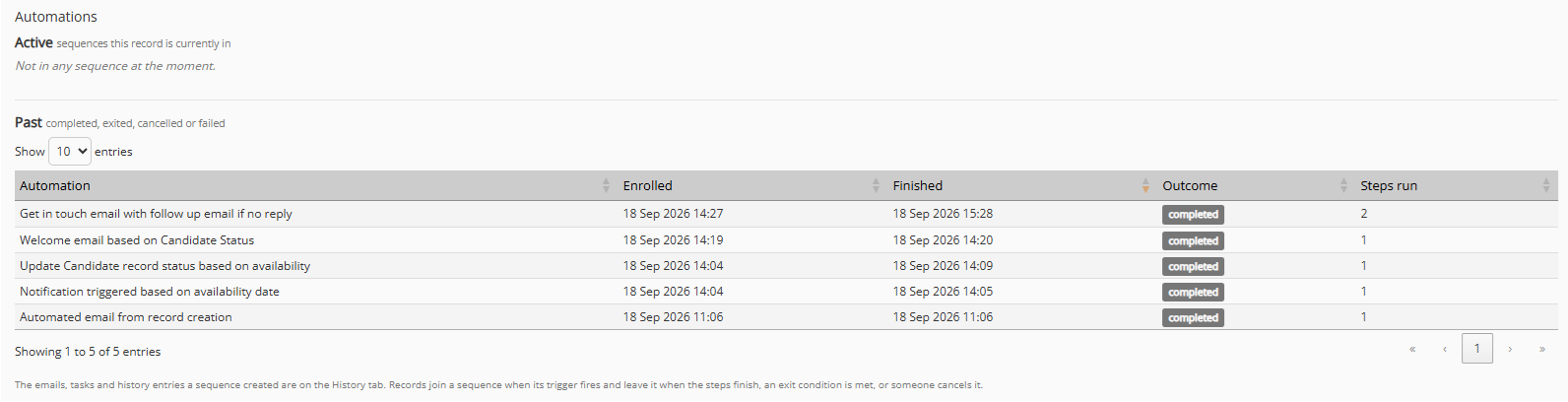
Record 'Automations' Toolbar option
On a Candidate, Company, Contact, Requirement or Placement record, the Automations toolbar option, when pressed, will show the record's historical enrolments past and current, this includes:
Automation name
Enrolled
Current Step
Next Action
When it is due
This also includes a cancel link (for full-access users).
Past enrolments will list:
Automation name
Enrolled
Finished
Outcome
Steps run.
The 'Automation name' will link to its enrolments in 'Automation Maintenance'.
Preview
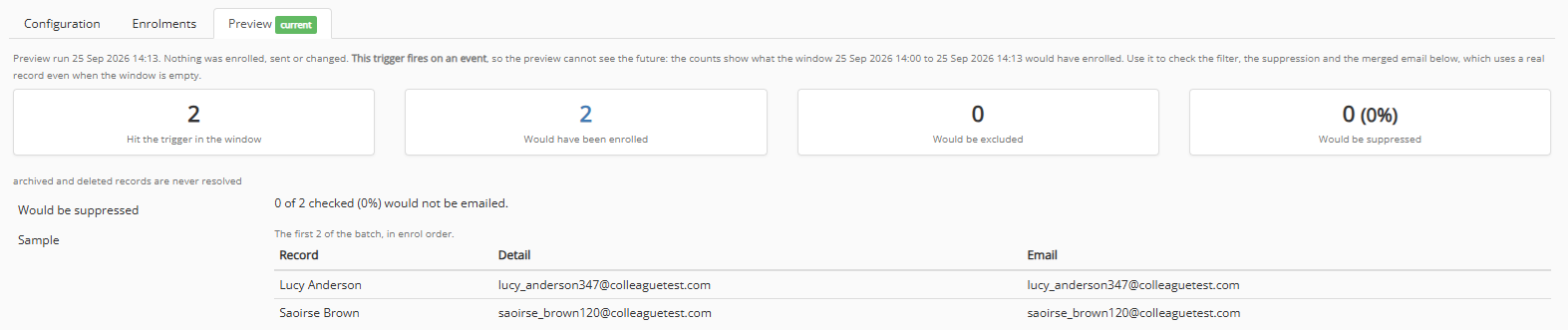
"Preview" saves the automation and then works out, without enrolling, sending or changing anything:
How many enrol during the next scan
Who would be excluded and why: already in the sequence, inside the re-enrol window, or over today's cap.
Who would be suppressed: how many of the batch could not be emailed and the reasons why. Above 50% suggests the criteria filter is probably wrong.
Asample output of the first 25 records, with links (so you can double check the data).
An examplemerged email for the first email step against a real record (or the latest record if nothing hit the trigger), to check the email template and merge fields work as expected.
The Preview badge on the Automation table will show as 'current' while the configuration matches the preview.
It will appear as 'out of date' after any changes that affect who will be enrolled or what happens to them.
Please note: Preview is recommended before going live with an automation. Choosing to go 'Live' without a 'current' preview will require confirmation.
How and When Things Run
Scans run in the background based on an automation's 'Scan' settings. The system default scan is 15 minutes.
Steps are picked up by the background runner approx once a minute, so a step with a 0-hour wait normally runs within a minute or two of becoming due.
Emails are queued and sent by the standard email worker shortly afterwards. 'Send at hour' holds them until that hour in the author's time zone. The step log's email detail shows each recipient's send status.
All dates on the automation screens are shown in your local time.
The following settings are held under Global Settings > Automation:
Setting
Meaning
Default
Enabled
The engine switch.
0
ScanFrequencyMinutes
Scan gap for automations set to Default.
15
MaxScansPerRun
Automations scanned per background pass.
3
MaxStepsPerRun
Steps the runner takes per pass (0 means no cap).
0
MaxSendsPerDay
Automation emails per day across all automations.
500
MaxEnrolmentsPerScan
Records one date or no-contact scan may enrol.
500
DefaultHistoryCode
History code for the history action when none is chosen.
Automation
Things To Know
No back-fill. Record Created, Field Changed, Stage Reached, and Watchdog triggers only process events that occur after the automation is activated. Use Dry Run mode to monitor enrolments without sending any communications.
Dry Runstill enrols records. Records are enrolled into the sequence, and each step is logged to show what would have happened. If you later switch the automation to Live, those enrolled records continue through the sequence from their next scheduled step.
Field Changed triggers require Track Changes. Track Changes must be enabled for field changes to be detected. This is automatically enabled when you save the automation; any changes made beforehand will not trigger enrolment.
Date-based and No Contact triggers run once per day. These triggers are evaluated daily at the time you specify.
Email steps are limited to Candidates and Contacts. Emails can only be sent to record types that have their own email address. For other record types, use an internal email or create a task instead.
Send As uses the automation author's mailbox. Emails are sent from the automation author's mailbox. If the author does not have a Microsoft 365 connection in Colleague, the email is sent from the system notification address instead, and this is recorded in the step log.
Automation-linked templates cannot be deleted: Any template currently used by an automation step cannot be removed from Template Maintenance.
Copy and Delete behaviour:
Copy creates a paused Dry Run version of the automation, including all steps.
Delete prompts you to choose how records currently moving through the sequence should be handled.
Watchdog searches use their own schedule. Records are enrolled when the Watchdog search runs, according to the Watchdog schedule, rather than the automation schedule.
Missing dependencies are clearly identified. If a referenced list, template, or custom field has been renamed or removed, it will appear as "(not in the list)" within the editor so that any issues can be easily identified and corrected.

 Configuration
 Record 'Automations' Toolbar option
 Preview