Release Notes - 26.07.02 (July 26)Development delivered under sprints 26.07.01 and 26.07.02.
Key features: Browser Extension enhancements, Outstanding Tasks against Records, Selection Screen improvements, User Appraisal report, plus minor UI and bug fixes. Upgrade date: 08/08/26  Enhancements EnhancementsBrowser Extension - CV/Contact Parsing and Profile Image Drag-and-Drop
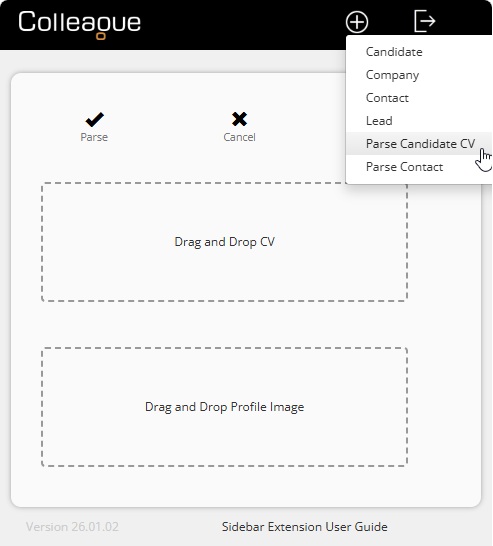
The Colleague Browser Extension sidebar now supports parsing Candidate CVs and Contacts directly from the browser. Users with the appropriate Parser user group permissions will see new "Parse Candidate CV" and "Parse Contact" options, which opens a page allowing a document to be dragged into a "Drag and Drop CV" area and a photo dragged into a "Drag and Drop Profile Image" area. Selecting "Parse" launches the parsing process within Colleague in a new tab.
As part of this development update, several other updates were applied:
Integration - Taleva
Taleva is an AI-powered recruitment platform that helps recruiters find, screen, engage, and manage candidates more efficiently. Recruiters describe their ideal candidate in plain language, and Taleva searches over 900 million profiles from 20+ sources. It uses AI to rank candidates, explain matches, rediscover past applicants, manage recruitment pipelines, and automate personalised outreach across channels. Website: https://taleva.io/
Login Page - New Colleague Login Experience
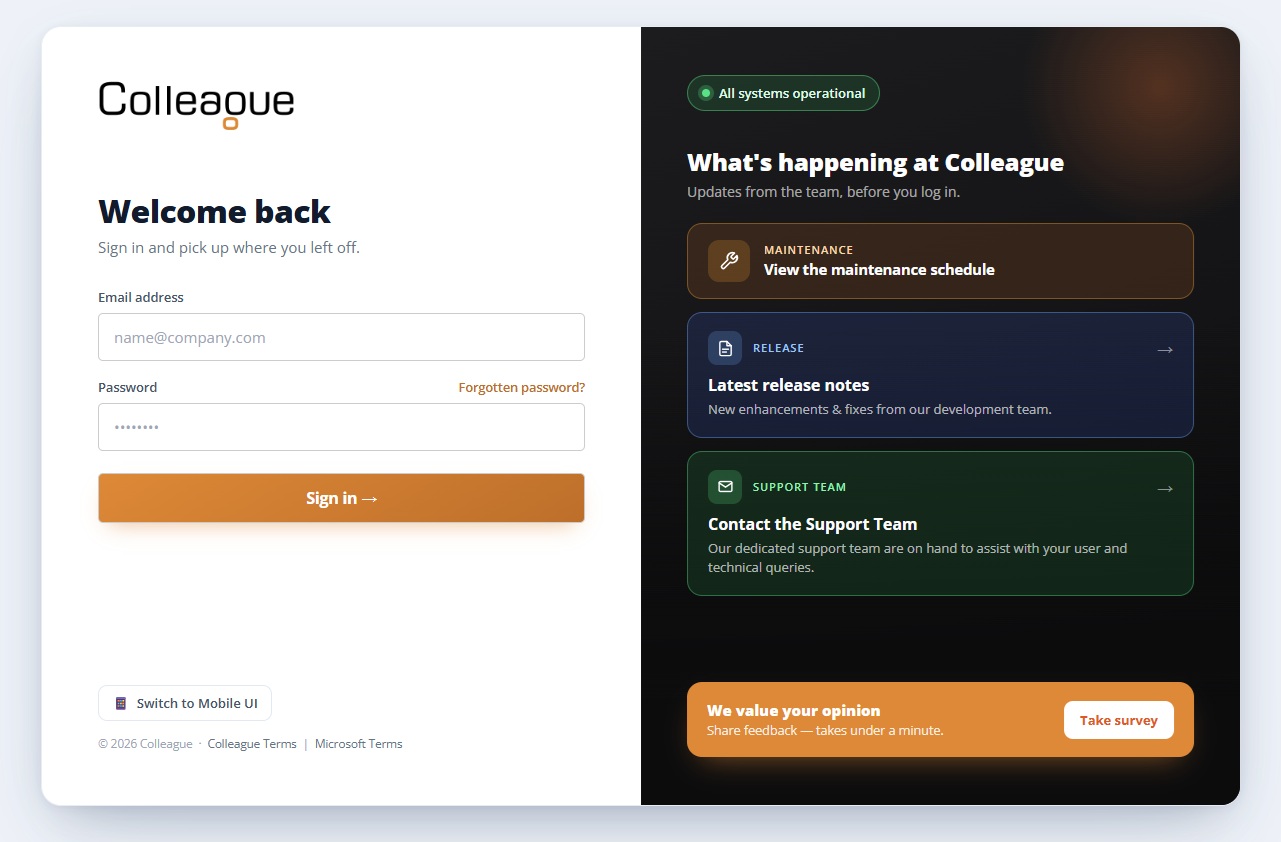
The Colleague login page (Desktop and Mobile) has been redesigned to a more modern User Interface. This includes:
Tasks - Outstanding Tasks
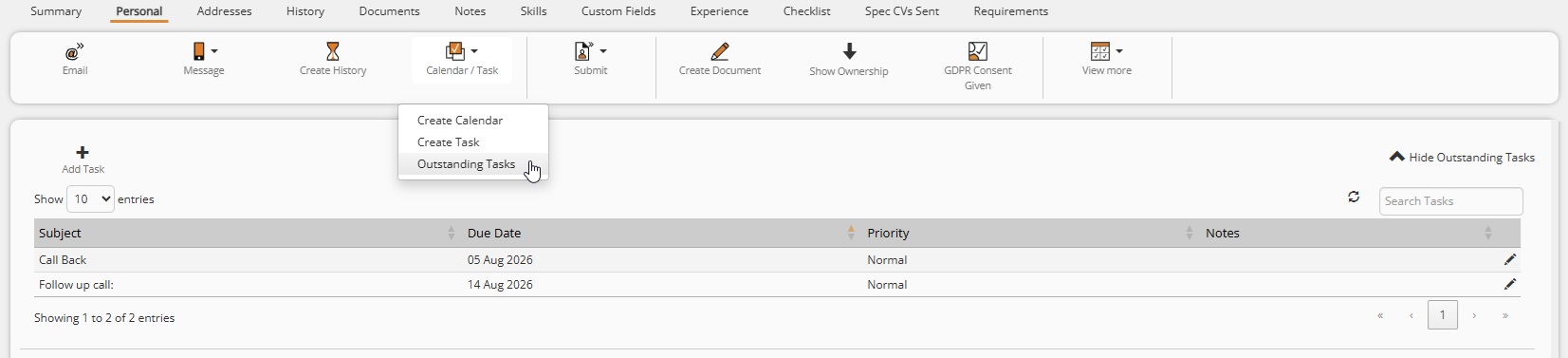
You can now view a record's outstanding tasks directly from the record itself. A new "Outstanding Tasks" option has been added to the toolbar (under the Calendar/Task menu), which opens a table of your tasks linked to that record, using the same lookup and behaviour as the standard Tasks view. Tasks assigned to you can be opened, edited and completed from here. Note: You can not currently view Tasks assigned to other users, this is being reviewed as the next enhancement to this area.
Search - Ability to set default Selection Screen criteria
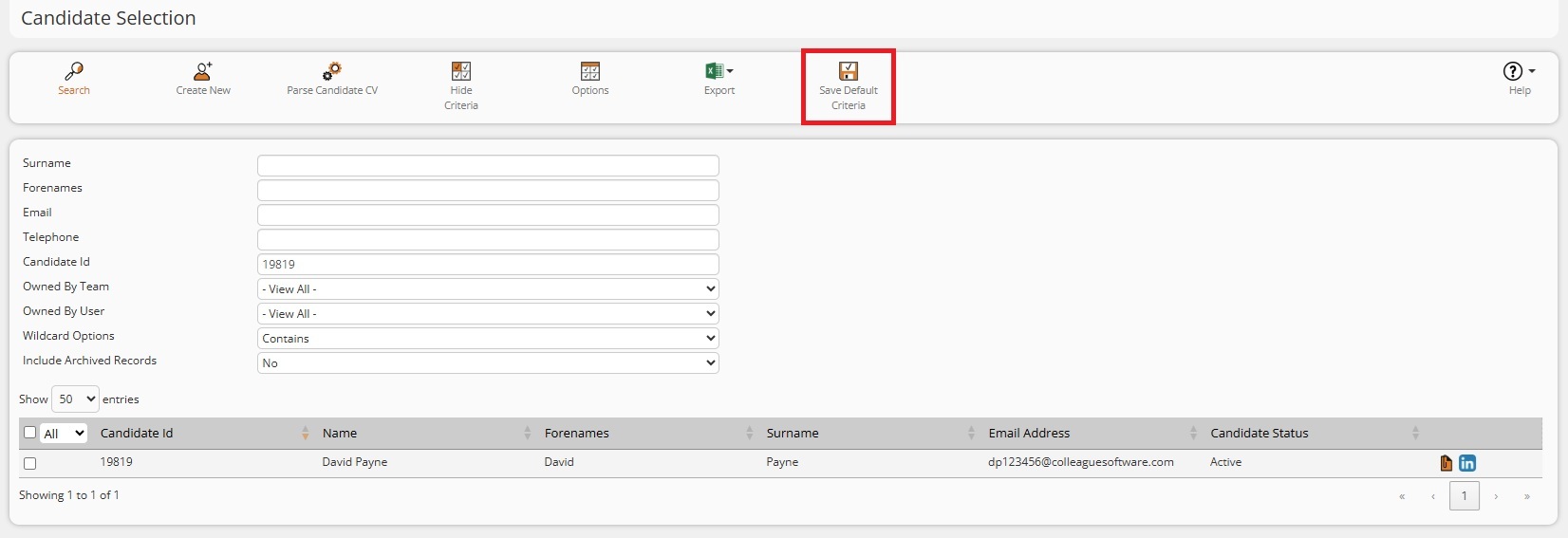
Colleague now supports user-specific default criteria across all main selection screens, helping users streamline navigation and access the records most relevant to their role. Selection screens are the primary lookup searches used to find existing records within the Colleague database (available from the left navigation menu). With this enhancement, any criteria entered on a selection screen can be remembered and automatically applied the next time that screen is opened. When entering criteria into a selection screen, Users will be given a 'Save Default Criteria' option in the toolbar. If a criteria exists, there will also be an option to 'Clear Default Criteria'. Default criteria can be saved independently for each user across the following entities:
This update reduces repetitive searching, improves consistency, and enables users to tailor selection screens to their preferred working practices. Defaults are stored on a per-user basis, ensuring a personalised experience without affecting other users.
Selection Screens - Social Media & Document Icons, Plus Grid Improvements
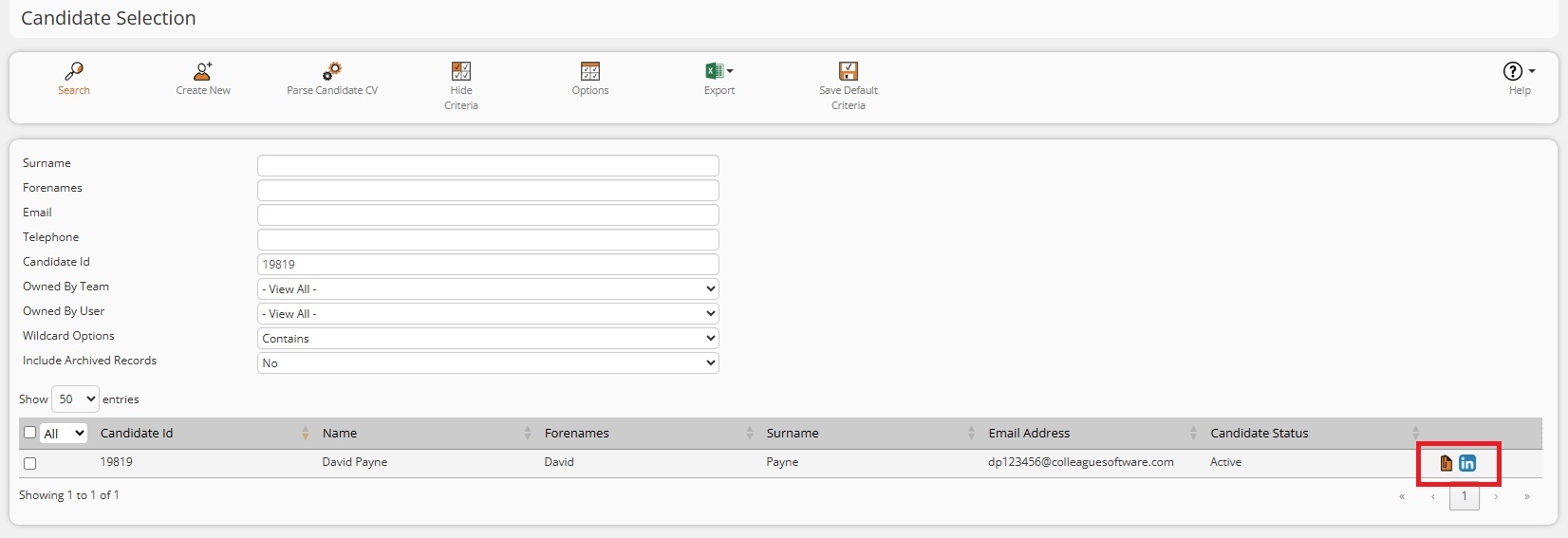
The Candidate, Company and Contact selection screens now display social media icons and a document icon alongside each record where these exist, bringing them in line with the icons already available in Search Results. Alongside this, the selection screens have received the same usability improvements recently delivered to Search Results: columns can now be resized and reordered by drag-and-drop, with your preferred layout remembered automatically as a user setting; the results grid displays correctly and fills the available space at 1080p resolution; and the Select All / Select Page-All checkbox behaves as expected.
Admin > Lookups - Ability to define which History codes can be created by certain User Groups
History codes now support a new "Createable By User Groups" setting, giving administrators finer control over who can create histories using a given code. Previously, the existing "Visible To User Groups" setting only controlled whether a history code could be seen, with no way to restrict the creation of the history code to a subset of users while still allowing everyone else to view it. With this update, a history code can now specify one or more User Groups under "Createable By User Groups." When configured, only users belonging to those groups can select and use the code when creating a new history. Users outside those groups can still see the code in the History table and use it in the History filter, but the option to create a history with it will not be available to them. This new setting operates independently from "Visible To User Groups," so codes can be made visible to the whole company while remaining selectable only by specific teams. If no groups are specified under the new setting, existing behavior is preserved and the code remains selectable according to the current "Allow Selection" configuration. The configuration control for the new setting mirrors the familiar multi-select UI already used for "Visible To User Groups," and server-side permission checks have been added to enforce the restriction consistently.
Reports - User Appraisal Report
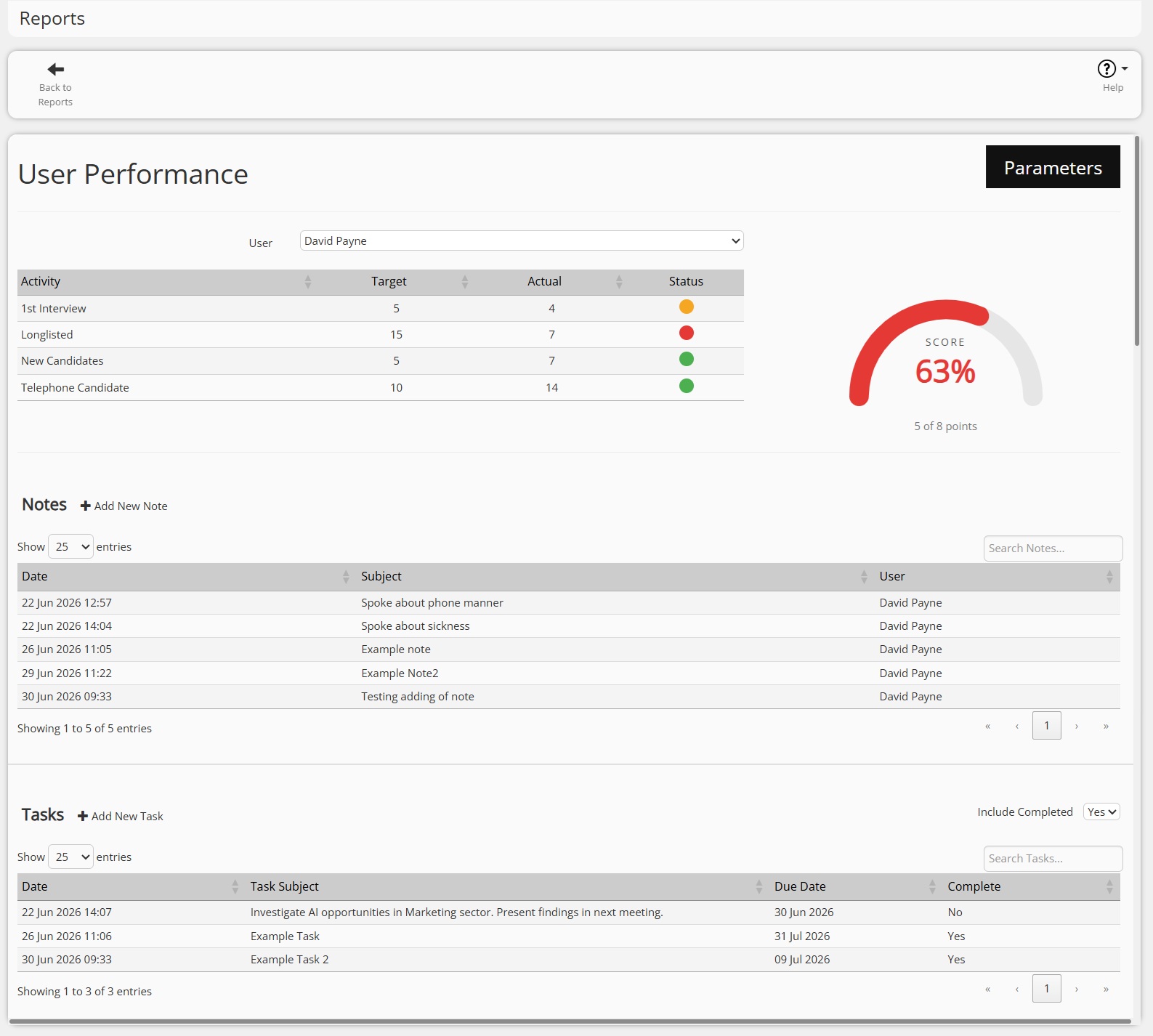
Colleague has added a new tool that can assist with User Appraisals, the new User Appraisal Report will be available from the Reports area, allowing a manager to review/assess a user's performance against their assigned targets over a selected period. The report parameters let you choose a Team, Period, and Activity, with the User list filtering automatically based on the selected Team. For the chosen user and period, the report lists each assigned target alongside actual performance, with a status flag showing whether the target was missed (red, under 70%), nearly met (yellow, 70–99%), or achieved (green, 100%+). An overall performance score is also calculated, weighting each target by its outcome (0 points for red, 1 for yellow, 2 for green) and expressing the total as a percentage of points scored versus points available. While viewing the report, users can add and edit User Notes and User Tasks directly, without needing to navigate away. This report can be assigned to specified User Groups within the Reports Maintenance.
Lists - Select All / Page Option added to Lists
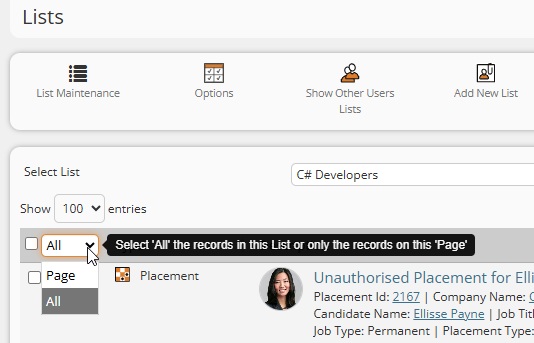
Lists that span multiple pages now include a scope dropdown next to the select-all checkbox in the list header, with options for "All" and "Page" (defaulting to "All"). This is the same as the Search Results area. Ticking select-all with "All" selected now selects every matching record across all pages, and the Email and Remove from List actions apply to that full selection, not just the current page. Choosing "Page" instead limits the selection to only the records currently visible. Switching the scope dropdown re-applies the selection accordingly, and unticking select-all clears the selection entirely.
Contacts - Copy Skills From New Company - Global Setting
The "Copy Skills From New Company" option on the Mark As Leaver screen (introduced in a previous release) is now hidden by default and has been moved behind a Global Setting, reverting to prior behaviour unless a customer admin opts in via Global Settings Maintenance.
Back Office - Sage Line 50 CSV Export
Back Office now supports exporting invoices and payments directly to Sage Line 50. A new "Export to Sage 50" option is available on the List Invoices and List Payments screens, alongside the existing Post Invoices / Post Payments buttons. Users can tick the records they want to export and optionally supply a Posted Date; the selected rows are then exported as a CSV file in Sage's standard audit-trail import format. Leaving the Posted Date blank produces a dry run for testing without updating any records, while supplying a date exports the file and marks the selected invoices/payments as posted (records already posted are left untouched). This replaces the previous SDK-based "Colleague to Sage" integration app, which is no longer supported.
 Bug Fixes Bug FixesRedis Cache Fixes
Fixes have been applied to aid Colleague's interaction with Redis Cache and ensure optimised management of objects. This update improves performance and prevents cache 'lock outs' which can cause Users to be logged out of Colleague with an error message.
Search Result Fixes
Search result lists no longer jump back to the top when a candidate or contact is flagged midway through the list, making it much easier to work through long search results (250+ people) without losing your place. The "Updating Selected Records" overlay that would sometimes get stuck on screen after using the "De/Select All" function has been fixed. A condition in the row-selection logic was causing the loading overlay to never close even though the update had completed.
GDPR Consent Field Fixes
Improved consistency and visibility of GDPR consent tracking when generating consent links. 'Consent Requested' is now updated when using 'Copy GDPR Links' and 'Generate GDPR Links', aligning with the existing email-based GDPR workflow. GDPR fields now update immediately without requiring the record to be refreshed. 'Response Received' and 'Consent Given' are now also reset when GDPR links are generated, ensuring consistent behaviour across all GDPR request methods.
Contact Addresses Tab Appearing in Red Font
Fixed an inconsistency where a Contact's "Addresses" tab was incorrectly shown as red/incomplete even though the address data was valid and usable in radius search, while the corresponding Company record displayed correctly.
Skills not copying correctly from Candidate to Contact
When creating a Candidate from an existing Contact, child-level skills (skills nested under a parent category) now correctly copy across to the new Candidate's Skills tab. Previously only the parent category appeared, even though the underlying data was present. Also fixed a data issue where skill paths containing a trailing slash (e.g. "/SKILLCATS/ENG/PM/") prevented affected skills from displaying correctly on Candidate and Contact Skills tabs.
Longlisting Candidates via "Suggested Candidates"
Resolved an intermittent issue where longlisting candidates from the "Suggested Candidates" view would report success but fail to actually attach the candidate to the Requirement.
Postcode Validation now runs on address load/selection
Previously, postcode validation was only triggered when a postcode was edited, meaning existing incorrect postcodes on entity records (e.g. companies) were not flagged as invalid — even though they could cause errors elsewhere, such as when performing a radius search around that address. This has been fixed so that the postcode validation check now also runs when an address is selected or loaded (provided the postcode field contains data), ensuring invalid postcodes are correctly identified and radius searches behave as expected.
Bank Details "Clear" fails with generic error
Previously, when clearing the Bank Details field on a Placement's Back Office tab a generic "An error occurred" message could occur. This has been fixed — Bank Details are now correctly removed from the placement, and error handling for this action has also been improved so any future issues are reported clearly rather than failing silently.
Duplicate email histories logged between Candidate and Contact records
Previously, when an email was sent from a Candidate record, if it shared the same email address as a Contact, the system would also log the email history against a Contact record (or another Candidate/Contact), resulting in duplicate history entries. Outgoing emails (from Colleague) will now be tagged with the sending record's entity type and ID, and the background email logging service will use this information to record the history against only the intended record.
Queued/bulk emails now record To and CC addresses in history
Email history entries created for queued and bulk email sends (including mailshots) now include the To and CC recipient addresses, consistent with history entries created for direct, single sends. Previously, history for these queued sends began directly with the subject line, with no record of who the email was addressed or copied to. This applies to both private queued sends (one email per recipient) and non-private queued sends (one email addressed to all recipients). As with other email history entries, the From address is not shown (since it is always the sending user, already recorded on the history) and BCC recipients are not disclosed. Existing history records are not retroactively updated; only emails sent after this fix is deployed will include the new recipient information. |